
Add pricing plans to your profile
Add pricing plans to your OMR Reviews profile in the Preise tab to display subscription options and build customer trust with transparent pricing
How to optimize your OMR Reviews profile: Add pricing plans
You can add your product’s pricing plan to your profile. Transparent pricing makes it much easier for potential customers to make a decision. Starting prices are already shown in the product overview in each category. Companies prefer clear pricing so they can compare offers quickly and avoid unexpected costs. Missing pricing information, on the other hand, can create distrust and increase your bounce rate.
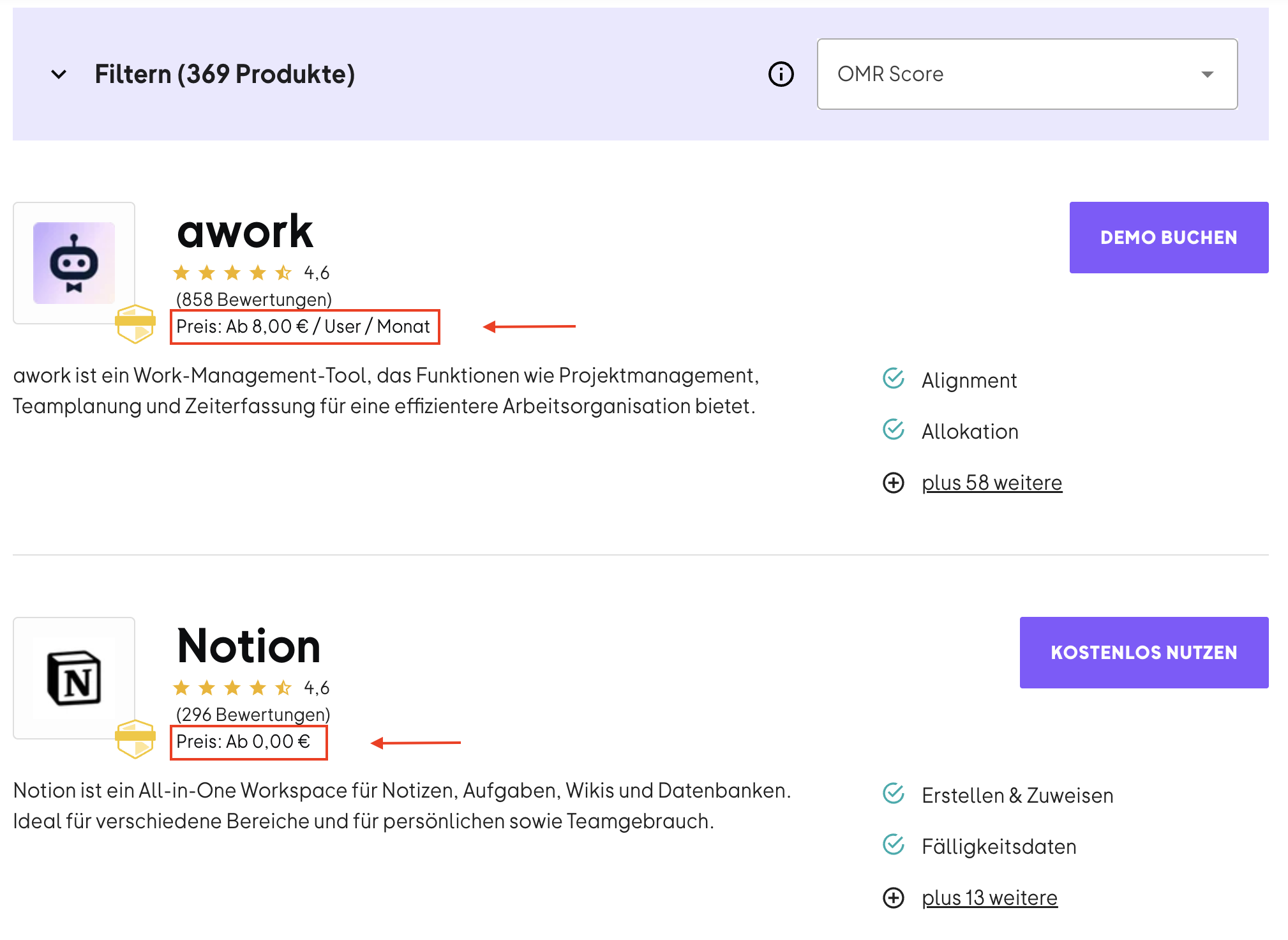
Pricing information and price disclaimers are not displayed in the product overview for unverified profiles.
👉 Explore our solutions at a glance
List all available subscription options here, from free basic versions to comprehensive premium packages. A transparent pricing overview builds trust and lets interested users see the available options at a glance.
If you don’t want to provide prices, you can indicate this accordingly. However, we don’t recommend this, as unclear pricing structures can put potential customers off and may lead them to switch to competitors with transparent offers.
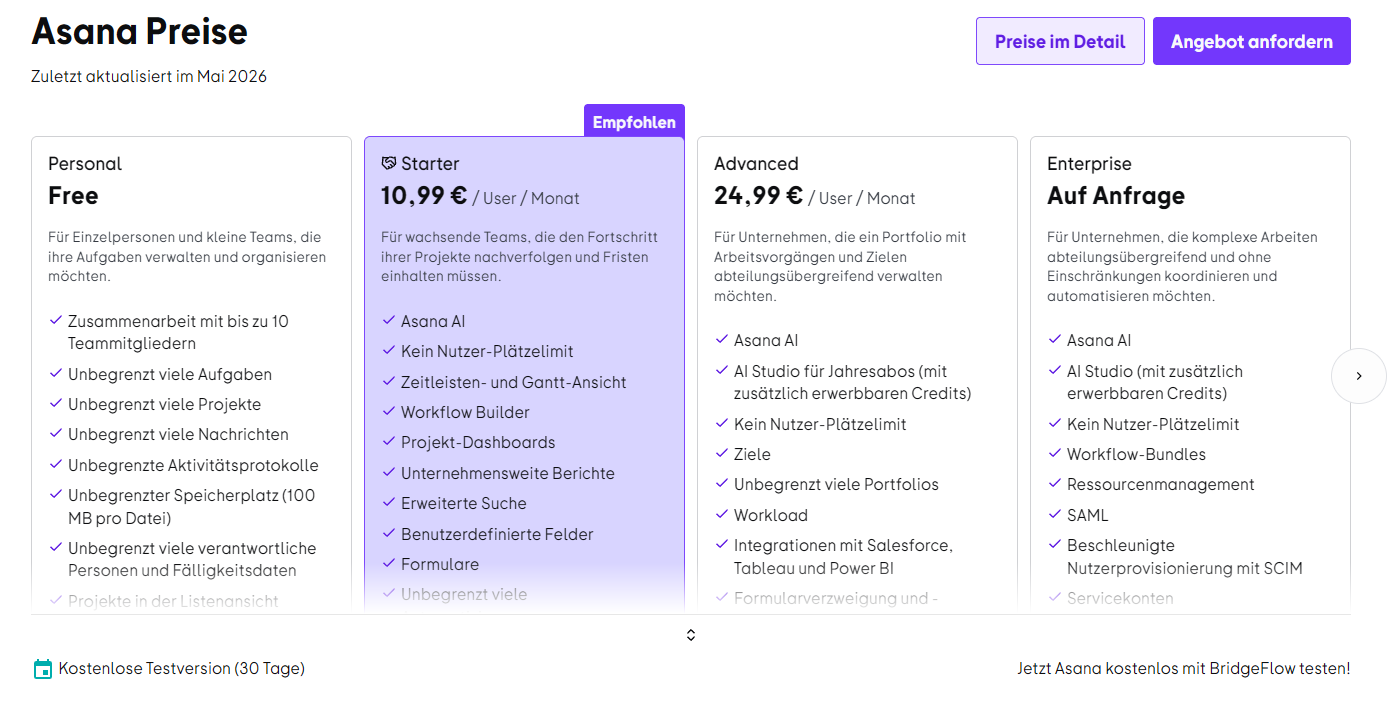 (1))
(1))
Remember to update your prices and packages regularly so potential customers always have the latest information.
You can add and update prices or pricing plans in the OMR Manager under the „Preise“ tab. You can also add a „Disclaimer-URL“ that links to your company’s pricing page, along with customizable „Disclaimer“ text. You can add UTM parameters to the saved Pricing URL so you can track the traffic generated by OMR Reviews using tools such as Google Analytics.
To create or update pricing plans, log in to your OMR Manager account and follow the tutorial below 👇
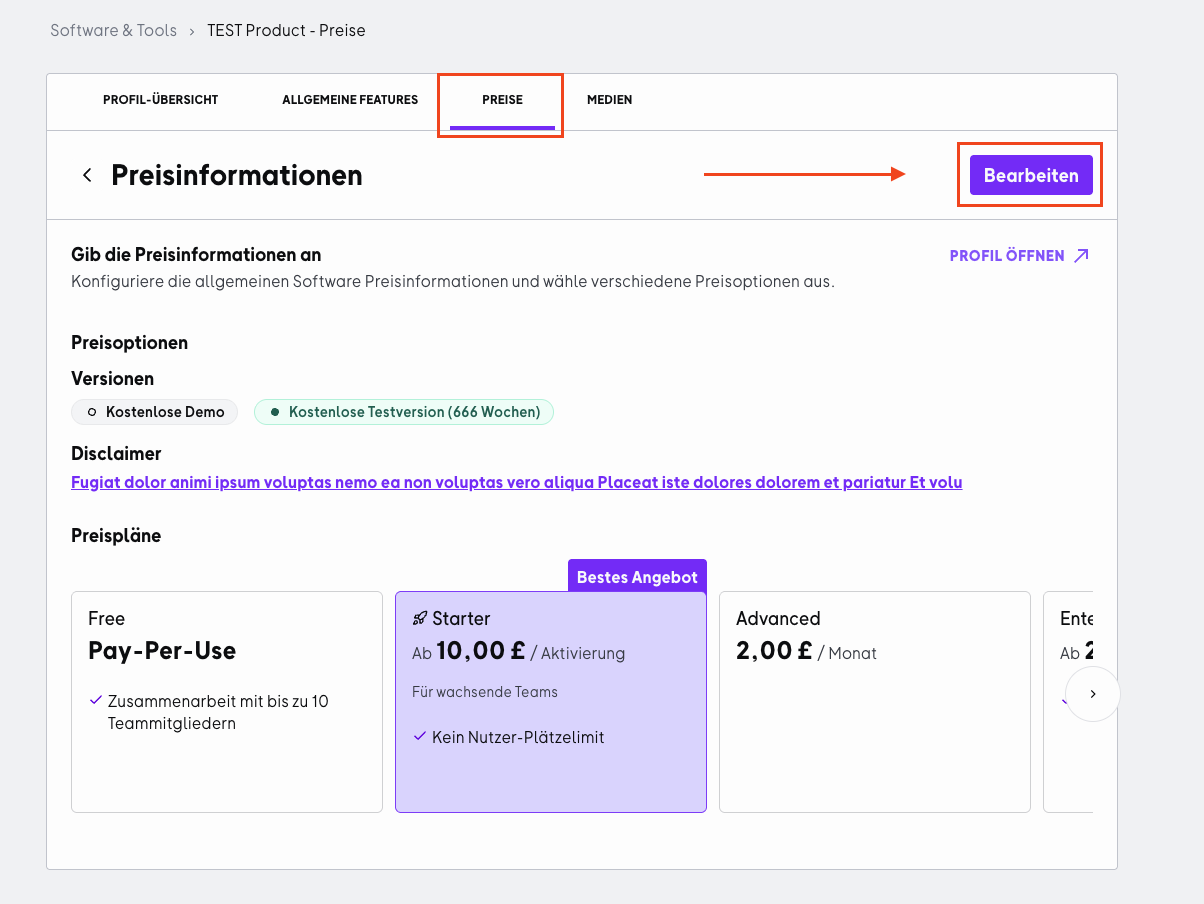
Step 1
Go to the „Preise“ section and click the „Bearbeiten“ button.
Step 2
You now have two options:
→ Option 1
No pricing information? If you don’t want to or can’t publish pricing plans, you can let people looking for software know and write a custom description.
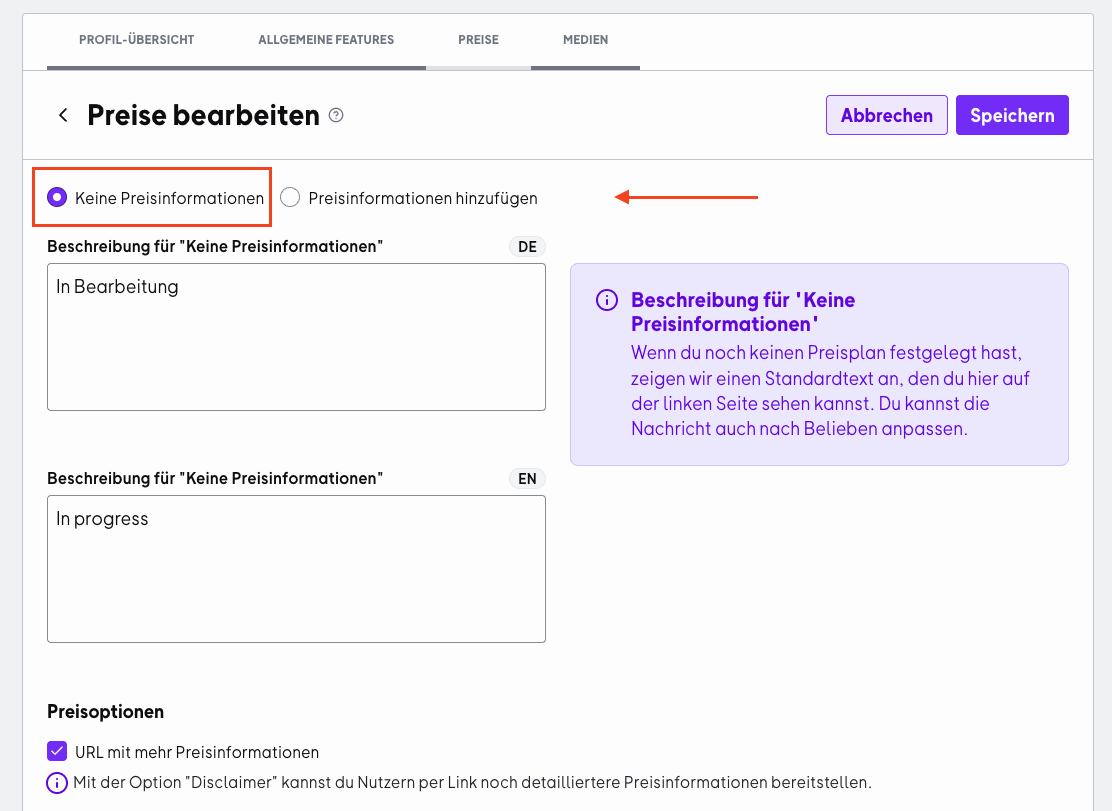
Other pricing options will still be displayed. You can select these in the „Preisoptionen“ box.
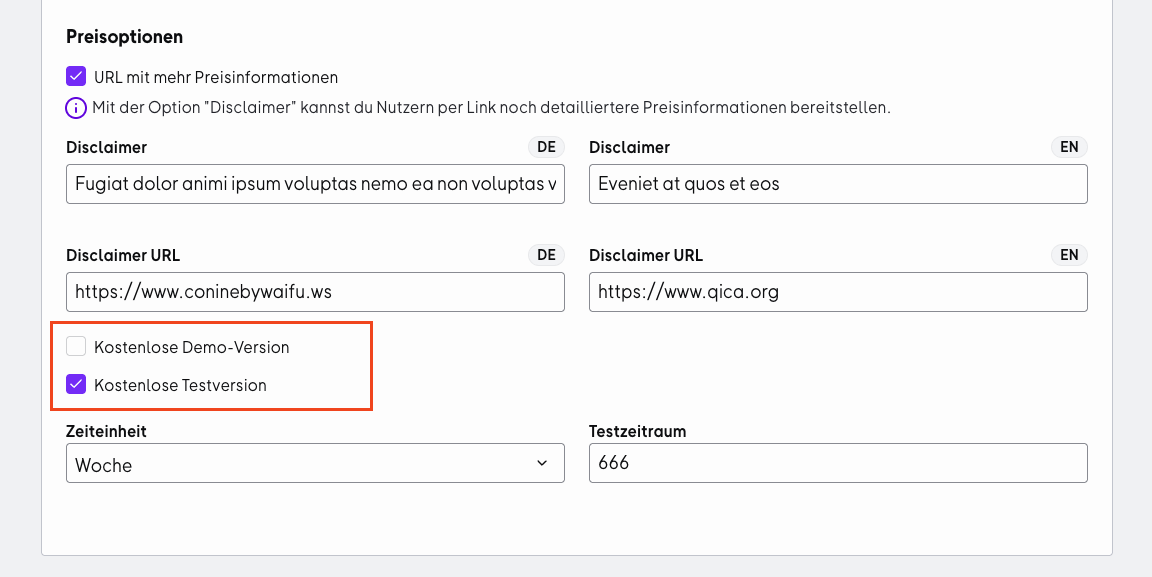
→ Option 2
If you want to create different pricing plans and list the features included with each one, click „Preisinformationen hinzufügen“. You can then create new pricing plans using the „Preisplan hinzufügen“ button.
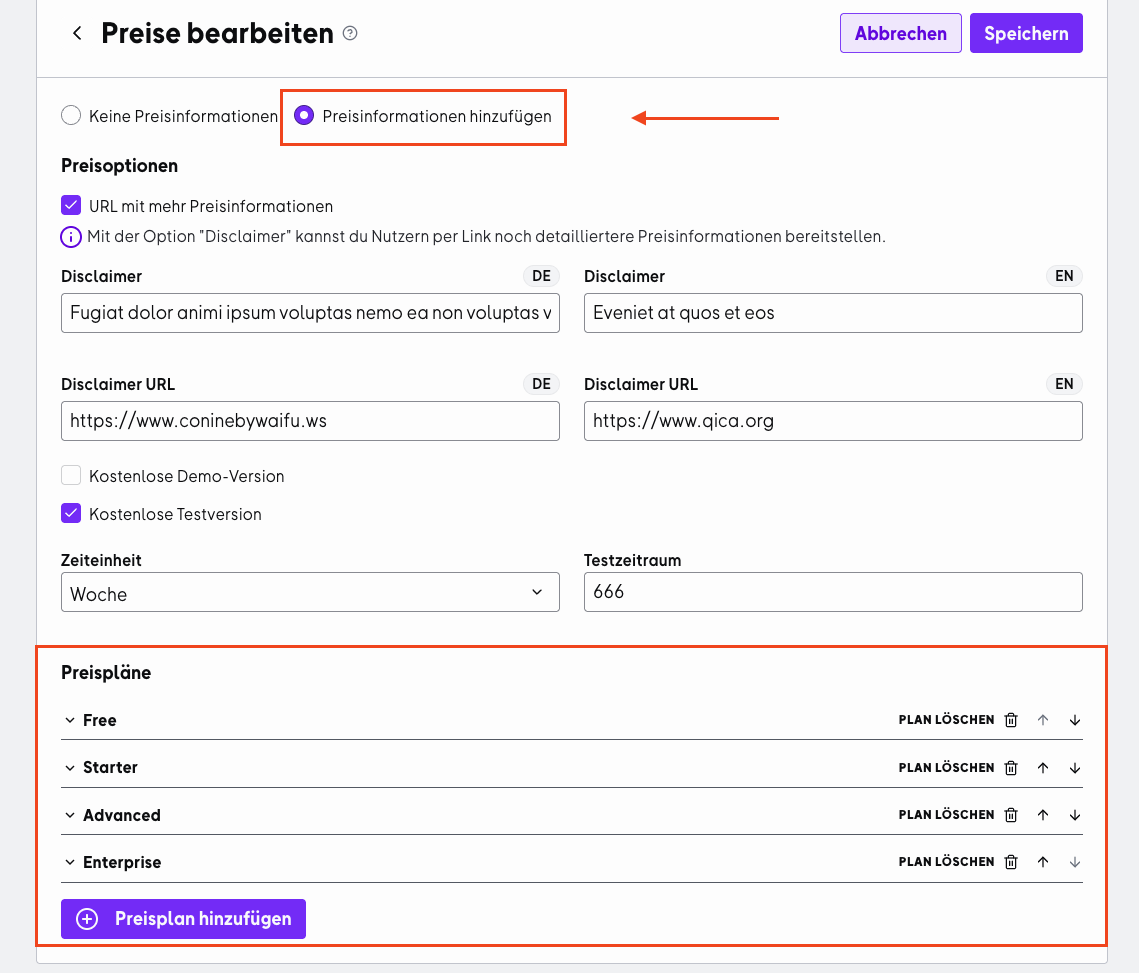
Step 3 (Option 2 only)
Fill in the fields with information about the selected pricing plan. Remember to also write an English version of the text. Then scroll back to the top and click the „Speichern“ button to save your changes.
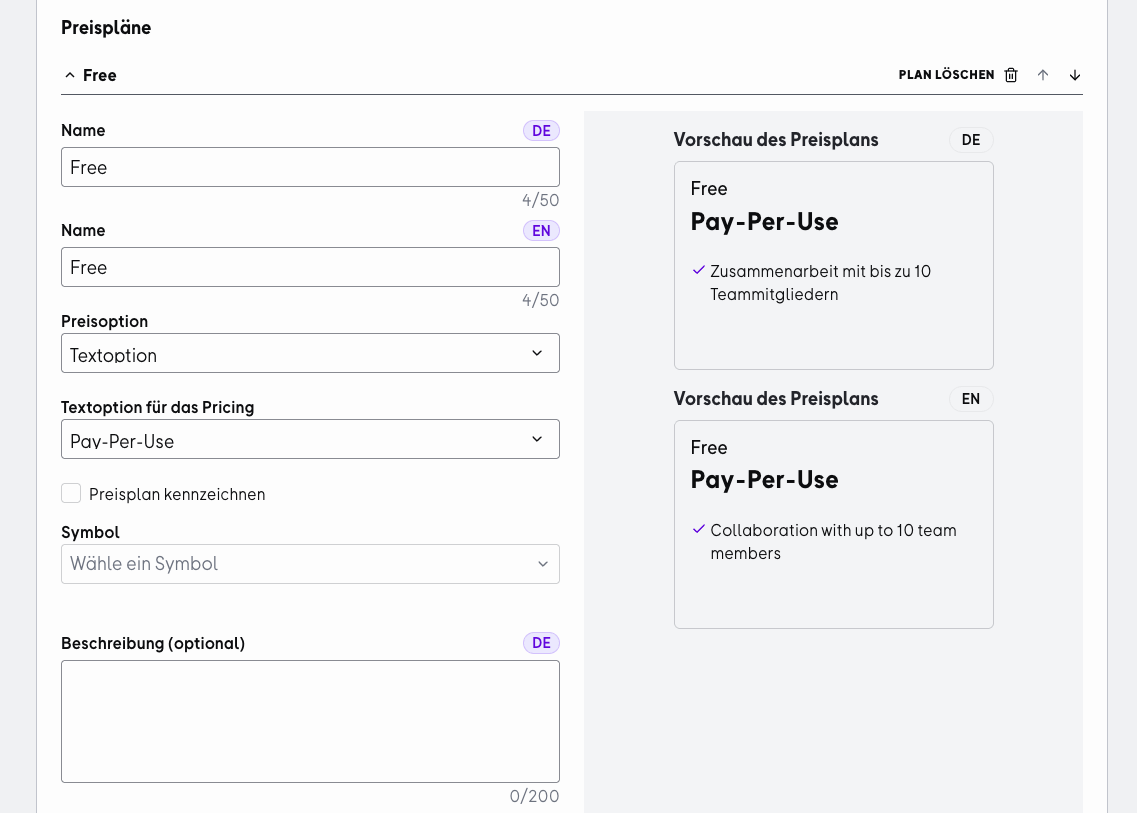
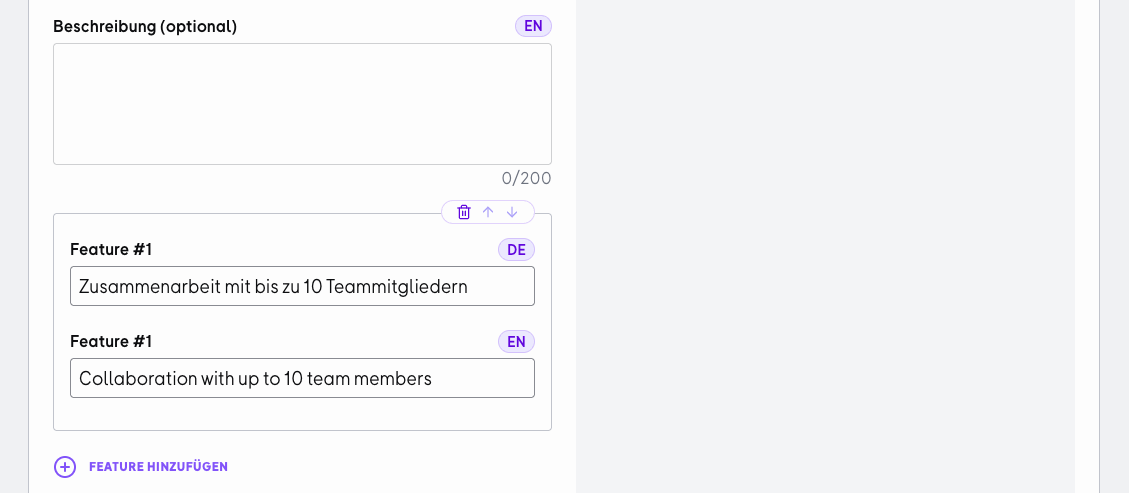
💡 Highlight a pricing plan
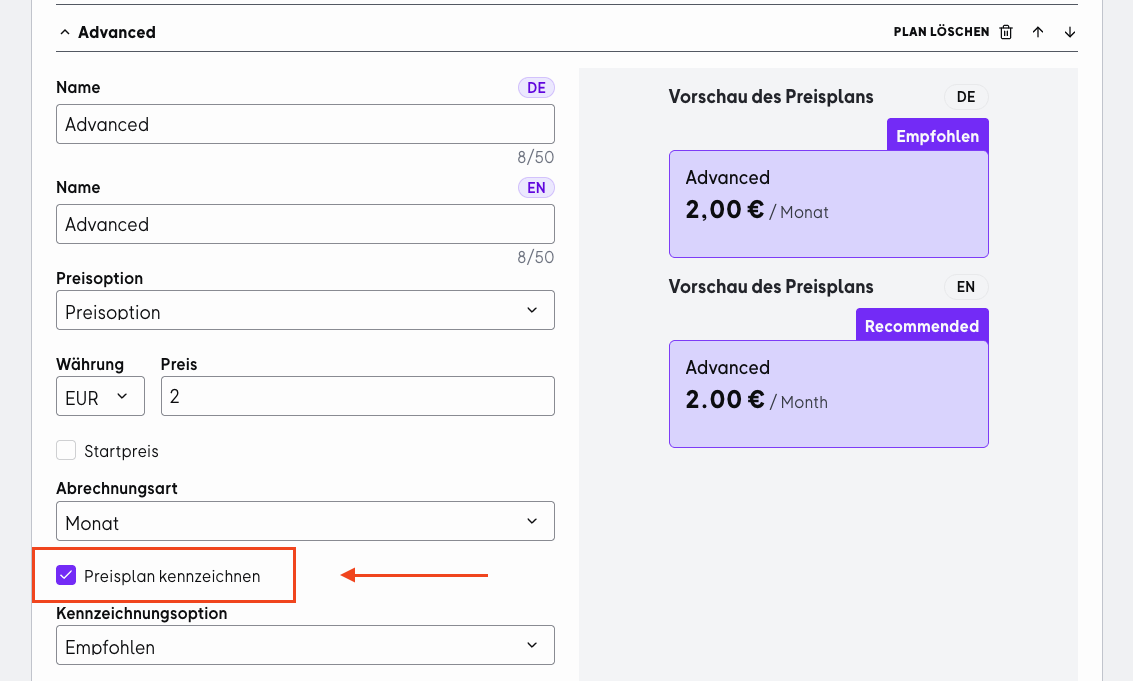
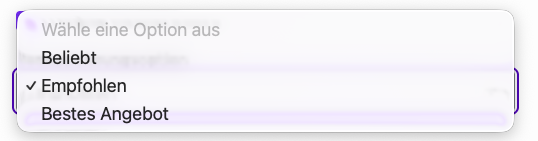
You can mark one of your pricing plans as a featured plan. To do this, choose a label from the available options ("Beliebt", "Empfohlen" or "Bestes Angebot"). The selected pricing plan will be visually highlighted on your OMR Reviews profile.
🎯 Icons for pricing plans
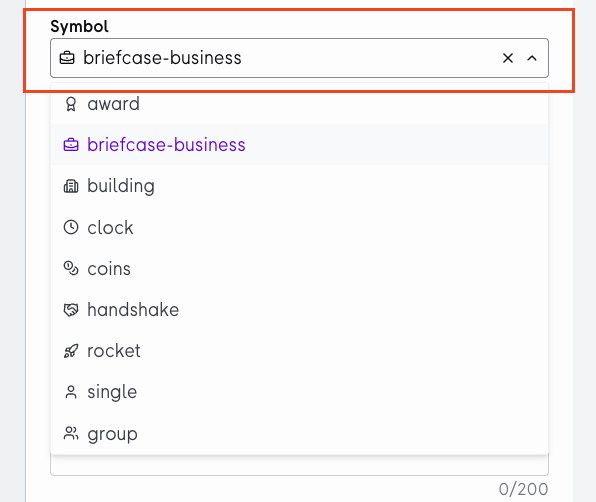
Assign a suitable icon to each pricing plan to make the differences between your offers easier to spot. You can choose from a predefined list of icons in the OMR Manager.
 Powered by happysupport.ai