
Export Reviews from OMR Manager and Use Them Further
Export reviews from OMR Manager as a spreadsheet with campaign details, ratings, and feedback to analyze customer insights and prioritize improvements
How to export reviews from OMR Manager and use them in a structured way for product, marketing, and reporting
By exporting reviews from OMR Manager, you can securely back up feedback, share it internally, and analyze it in a structured way. For example, you can use it for product insights, website optimizations, reporting, or campaign work.
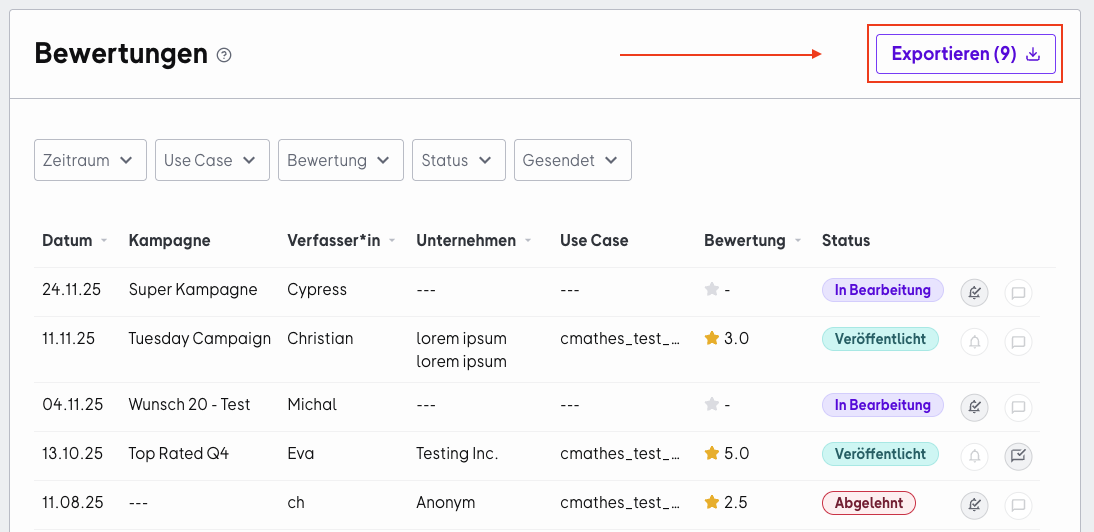
In the exported spreadsheet, you'll find the following columns and information, among others:
-
Campaign Name
-
Source
-
Invitation Message
-
Status (State)
-
Created at
-
First published at
-
Updated at
-
Published at
-
Reviewer Firstname
-
Company Name
-
Title
-
Purpose
-
Positive Feedback
-
Negative Feedback
-
Problems/Challenges
-
Rating
For data protection reasons, we can't share the email addresses of reviewers. However, you can still use OMR Manager to send reminders directly through the system and stay in touch with reviewers in a targeted way.
How do you export reviews from OMR Manager?
-
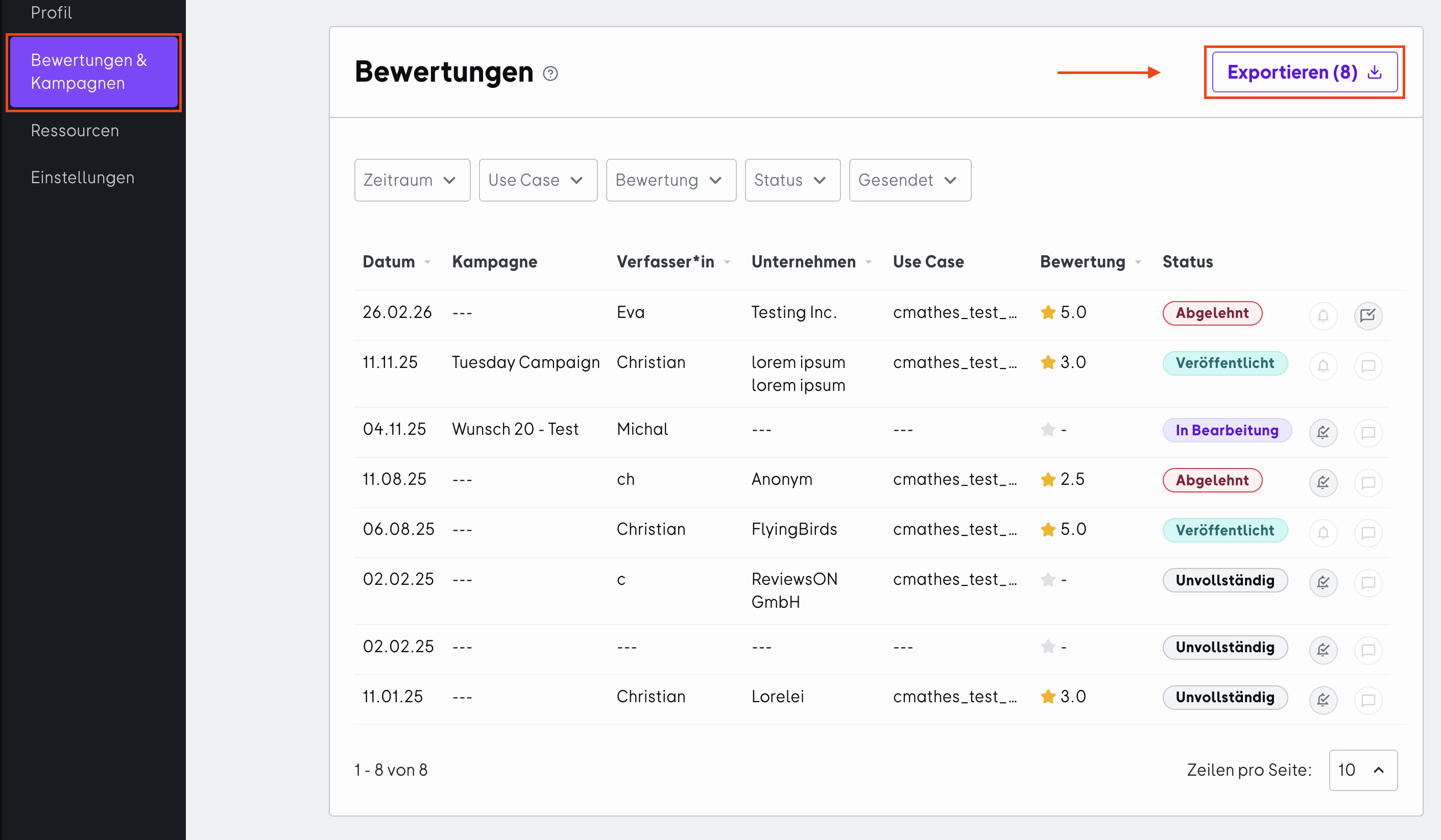
Log into the OMR Manager and go to your product profile.
-
Open the "Reviews & Campaigns" tab. You'll find an overview of your reviews there.
-
You can optionally filter the reviews by using the filters (for example, time period, rating/score, status) to export only the section you need right now (for example, only reviews with low ratings).
-
Click the "Export" button in the top right to download your reviews as a spreadsheet.
What can you do with your exported reviews?
Prioritize product improvements more effectively
When you export reviews, you can cluster feedback by topic more easily (for example, onboarding, performance, integrations, support, usability). Combined with rating and time period, you'll see which topics come up more often, whether new patterns are emerging, and which points tend to be associated with lower ratings. This is especially helpful for getting a reliable picture from individual comments and sharing it with your team.
Sharpen your website and messaging with real customer language
The text fields like "Purpose", "Positive", or "Problems" often contain exactly the wording that your target audience uses themselves. This is great for refining value propositions on your website, improving FAQs, or addressing objections better. What's important: always put content in proper context and don't present it as absolute statements.
Feed your ads and campaign work with relevant insights
For creatives and campaigns, the export adds the most value when you look for recurring pain points and moments of value. "Problems" and "Negative" often reveal which hurdles really matter in everyday use, and "Purpose" can show in which usage situations your product is perceived as particularly strong.
Make regular reporting easier
By doing a regular export, you can get a quick overview each month: new published reviews, average rating, recurring top topics, and how they develop over time. This turns "gut-feel feedback" into structured, transparent input for stakeholders.
Best practices for internal use
-
Note briefly with each export which filters were active (time period, status) so your analyses stay comparable.
-
Consistent tags help with analysis when multiple people are working with the export.
-
Individual reviews are valuable for testing hypotheses, because decisions improve when patterns become visible.
 Powered by happysupport.ai