
OMRviewer properties in HubSpot
Access buyer intent data from OMRviewer synced to HubSpot company properties, including session counts, visit dates, intent scores, and top URLs
The fields OMRviewer writes to your HubSpot and how to use them
Once the HubSpot integration is active in OMRviewer, buyer intent data appears in two places in your HubSpot:
- 15 company properties, grouped under a dedicated property group called "OMRviewer"
- Each session as an activity in the company's timeline
Contacts and deals don't get their own OMRviewer fields. To learn how to set up the integration, see the article "Integrating buyer intent data into your CRM".
How to find the properties
- In HubSpot, open a company that was transferred via OMRviewer
- In the company details, click "Aktionen", then "Alle Eigenschaften anzeigen"
- Enter "OMRviewer" in the search field
You'll now see all the values OMRviewer has transferred for this company.
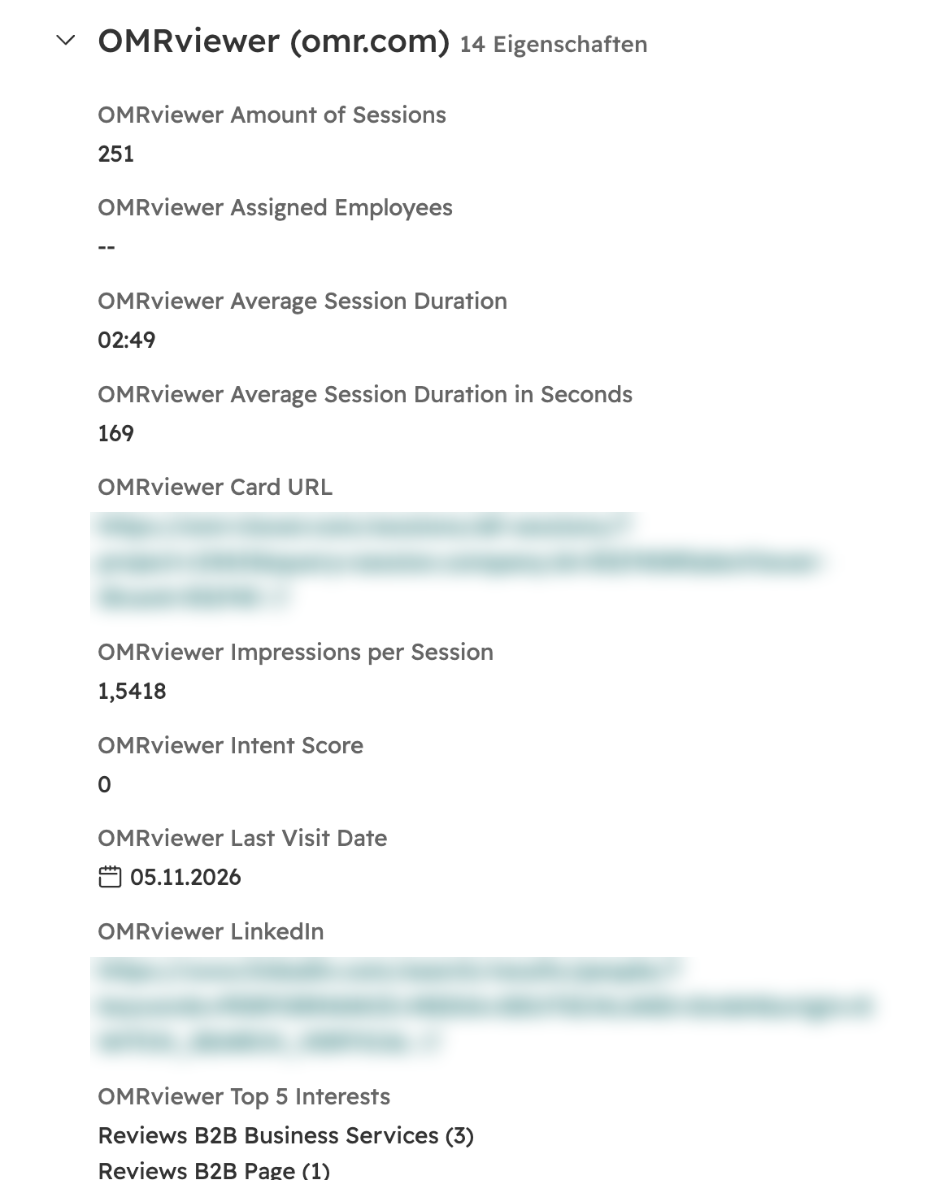
Overview of all properties
| Property | Field type | Description |
|---|---|---|
| OMRviewer Amount of Sessions | Number | Number of all sessions for the company |
| OMRviewer Last Visit Date | Date | Date of the most recent visit |
| OMRviewer Impressions per Session | Number | Average number of page views per session |
| OMRviewer Average Session Duration | Text | Average duration of a session (mm:ss) |
| OMRviewer Average Session Duration in Seconds | Number | Average duration of a session in seconds |
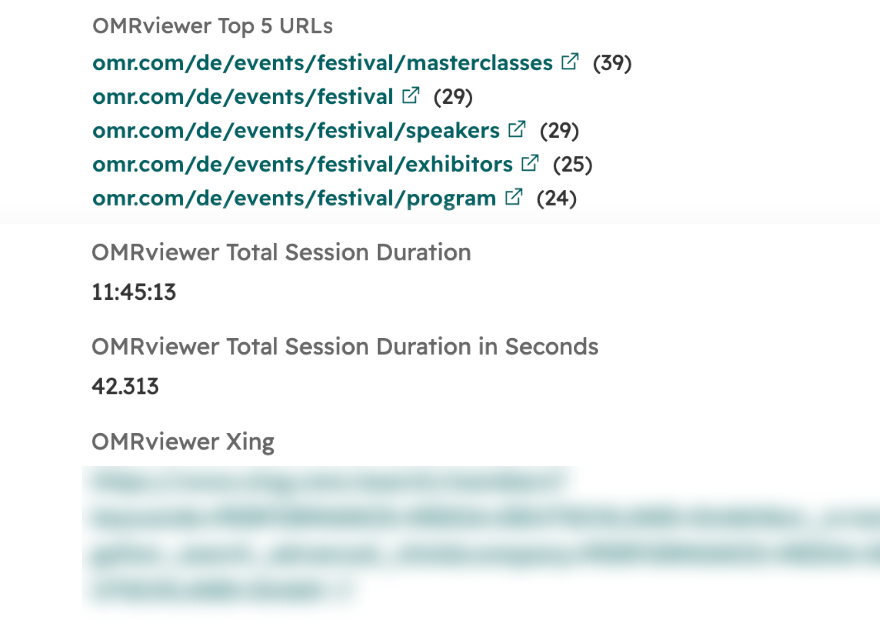
| OMRviewer Total Session Duration | Text | Total duration of all sessions (days hh:mm:ss) |
| OMRviewer Total Session Duration in Seconds | Number | Total duration of all sessions in seconds |
| OMRviewer Intent Score | Number | The company's average Intent Score |
| OMRviewer Top 5 URLs | Multi-line text | The 5 most visited pages, with the number of views in parentheses |
| OMRviewer Top 5 Interests | Multi-line text | The 5 most visited interests, meaning page groups set up in OMRviewer |
| OMRviewer Card URL | Text (link) | Direct link to the company card in OMRviewer |
| OMRviewer LinkedIn | Text (link) | A preconfigured LinkedIn people search for the company |
| OMRviewer Xing | Text (link) | A preconfigured Xing member search for the company |
| OMRviewer Company ID | Text | The company's ID in OMRviewer |
| OMRviewer Assigned Employees | Multi-line text | Email addresses of the employees assigned to the company in OMRviewer |
Sessions in the timeline
OMRviewer also logs each session as an activity on the company. Expand an activity to see the pages visited in the order they were viewed and the time spent on each page. In the activity overview, filter by "OMRviewer".
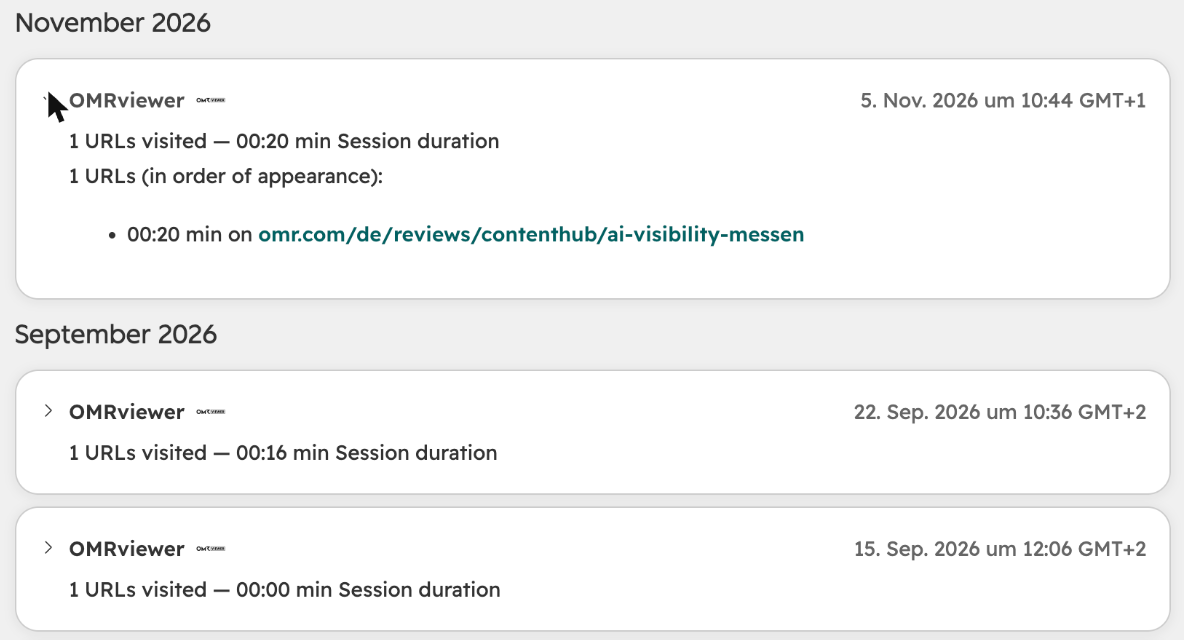
These activities are a great way to start a conversation. Use the properties for lists, workflows, and lead scoring.
Tips for using the properties
- Active companies for your sales team: Create an active list with "OMRviewer Last Visit Date" set to the last 7 days and "OMRviewer Amount of Sessions" set to at least 3. The list updates automatically.
- Lead scoring: Always use the "in Seconds" fields for filters and scoring. The formatted duration fields are text, so you can't compare them using greater than or less than.
- Conversation starters: "OMRviewer Top 5 URLs" shows whether a company has viewed your profile, your competitors, or your category.
Good to know
- Empty fields: "OMRviewer Assigned Employees" and "OMRviewer Top 5 Interests" stay empty until you assign employees or create interests in OMRviewer.
- Intent Score: Before setting up scoring, check whether the Intent Score is populated in your OMRviewer.
- Company ID: This property is hidden in HubSpot. That's why the record shows 14 properties instead of 15. You can still use it in lists, exports, and workflows.
- Internal names: You need the internal names for workflows or the HubSpot API. They follow the pattern
omrviewer_<field>_<project-id>, for exampleomrviewer_last_visit_date_12345. You can find the exact names in HubSpot under Einstellungen > Eigenschaften in the "OMRviewer" group.
 Powered by happysupport.ai