
The Leads Section in OMR Manager
Manage contact requests, pricing inquiries, and document downloads from your OMR Reviews profile in the centralized Leads section with filtering and export
Contact requests, pricing requests, document downloads, and engagement banner leads from your OMR Reviews profile, all in one place: how to find, filter, and manage your leads
When buyers show interest in your product on OMR Reviews, their request appears in your product’s Leads section in OMR Manager. There you’ll find everyone who has contacted you through your profile, sorted by date and filterable by type. You can also export leads, manage their status, add tags, and view their history, including notes and status changes, on the detail page. The Leads section is available to software providers and agencies alike. This article shows you where to find it, which leads appear there, what determines this, and how to work with your leads effectively.
This article covers the following topics 👇
- Which leads appear in the Leads section
- How to find your leads in OMR Manager
- A closer look at the lead feed
- Lead details, status, tags, and history
- Exporting leads
- Who on your team can see leads and who gets notified
- Best practices: How to work with incoming leads
Which leads appear in the Leads section
In the Leads section, you’ll see everyone who has actively contacted you through your OMR Reviews profile or requested content from you. There are four types, and they all appear in the same feed:
| Lead type | What the person did | What this tells you about their interest |
|---|---|---|
| Kontaktanfrage | Filled out and submitted the contact form on your profile | Wants to talk to you, often with a specific question in the message field |
| Preisanfrage | Requested a custom quote using the pricing CTA | Is evaluating options and checking budget and terms |
| Dokumenten-Download | Downloaded a document from the downloads section of your profile | Is researching the topic, but is usually at an earlier stage of the process |
| Engagement-Banner | Left their contact details through the engagement banner on your product page | Discovered your product while researching your profile and actively responded |
The engagement banner on your OMR Reviews product page gives you an additional way to collect leads for your product. These leads appear in the Leads section under their own type, “Engagement-Banner,” so you can easily distinguish them from other requests.
In every case, people have provided their contact details themselves, so these aren’t anonymous signals. Downloads also require double opt-in: contact details are only shared after confirmation.
These leads are different from the buyer intent data in OMRviewer. There, you can see companies researching your profile or category without contacting you. The two complement each other: OMRviewer shows you quiet research, while the Leads section shows you people who have already taken the first step.
👉 Learn more about “Working with OMRviewer”
How to find your leads in OMR Manager
Log in to OMR Manager and select your product from the left-hand navigation. In your product’s sub-navigation, you’ll find “Leads” at the same level as Profil, Bewertungen & Kampagnen, Ressourcen, and Einstellungen.
Leads are always associated with a specific product. If you manage multiple tools in OMR Manager, each product has its own Leads section. If you’re an agency with a business service profile, you’ll find the section in the same place in your profile navigation.
You’ll also get a notification in OMR Manager whenever a new lead comes in. Use the button in the notification to go straight to the Leads section without navigating there yourself.

A closer look at the lead feed
The feed shows all leads for your product, with the newest at the top.
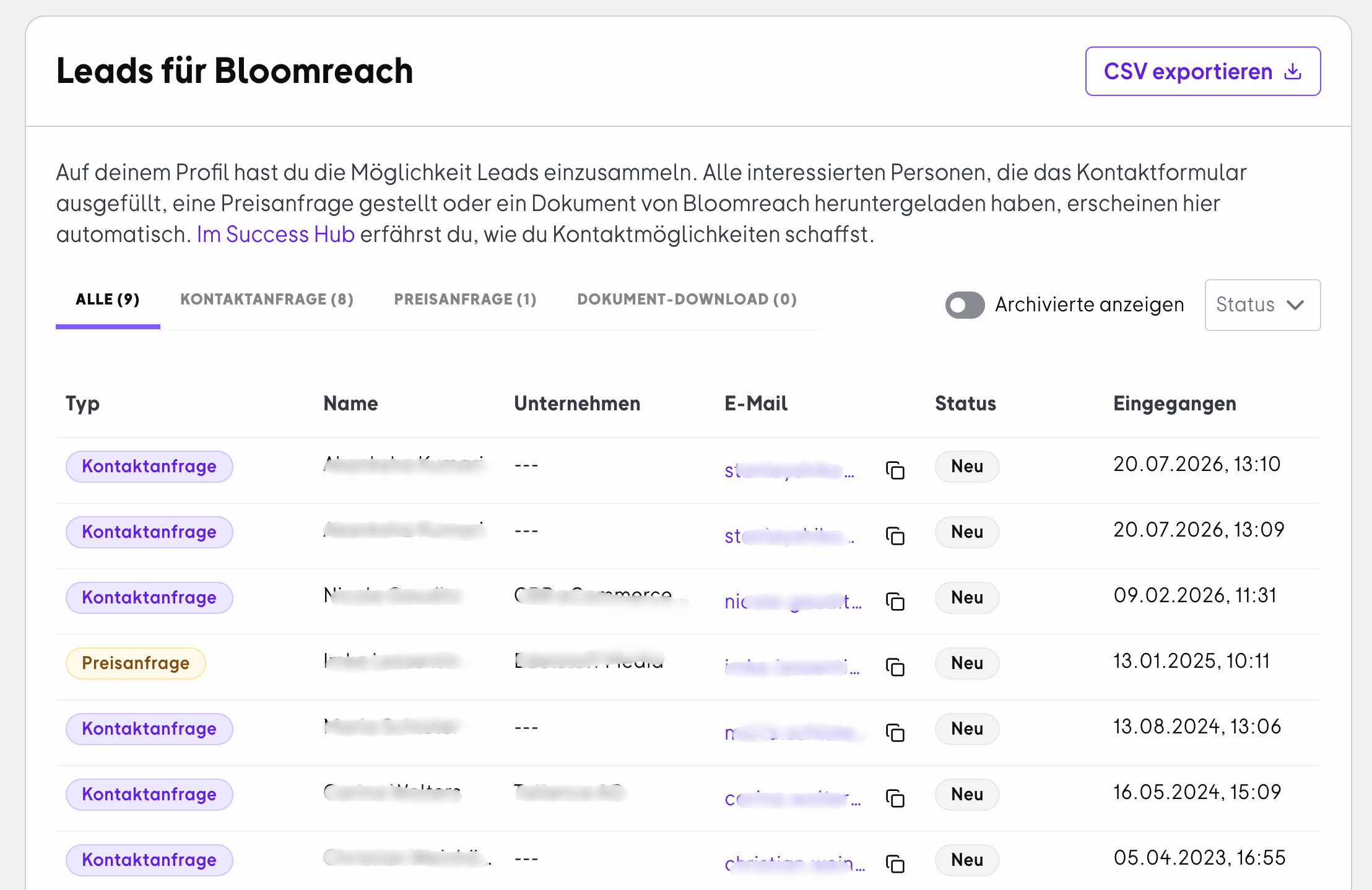
Leads section in OMR Manager: tabs for filtering by lead type and an overview of all incoming leads.
The tabs as type filters
Use the tabs to switch between Alle, Kontaktanfrage, Preisanfrage, Dokumenten-Download, and Engagement-Banner. Each tab shows the number of leads of that type, so you can see at a glance where most of your requests are coming from.
List columns
- Typ → a colored chip showing the lead type, so you can tell rows apart at a glance in the “Alle” tab
- Name → the person’s first and last name
- Unternehmen → shown if provided. If not, a placeholder appears
- E-Mail → the email address provided, with a copy icon right next to it
- Eingang → the date and time the request came in
- Status → shows the lead’s current status (Neu; Kontaktiert; Gewonnen; Verloren)
Leads you haven’t opened yet are marked in the feed. This makes it easy to see what’s been added since your last visit.
Lead details, status, tags, and history
When you open a lead, you can see the request details in context on the detail page. Along with the contact details and information from the request, you’ll also find the lead’s current status, which you can change.
The status helps you keep track of how your leads are progressing directly in OMR Manager and follow up with them accordingly.
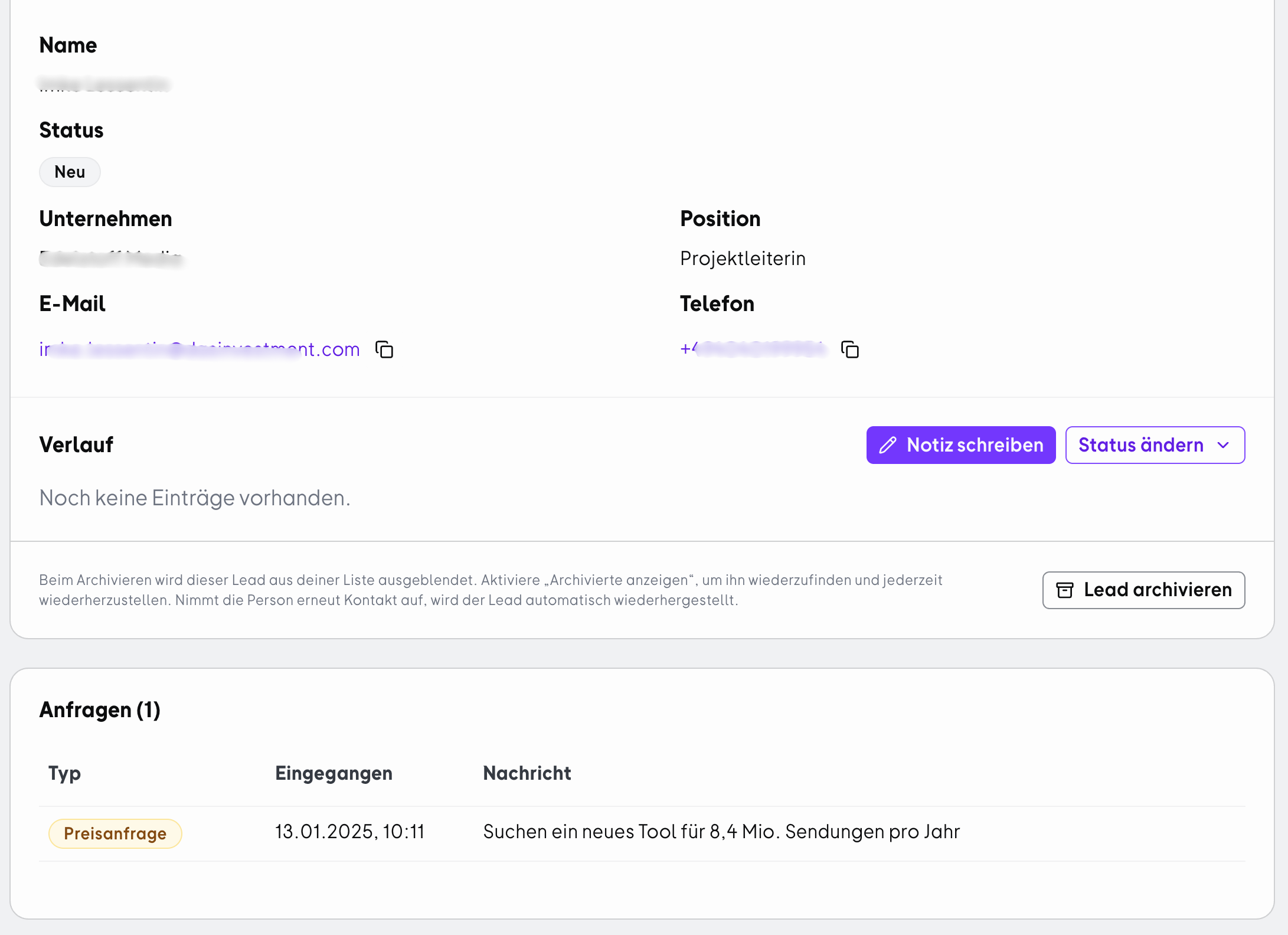
Expanded row for a pricing request with message and position.
That message is your most important point of reference when following up, because it tells you what the person is actually looking for.
Add tags to leads
Use Tags to organize your leads based on your own criteria, such as priority, team ownership, industry, or campaign. This makes it easy to see which leads belong together and who’s responsible for them.
Notes and status changes in the history
The history shows notes and status changes together in chronological order. This lets you see how a lead has progressed, what was discussed with the person, and which changes have already been made. This is especially useful when several people on your team are working on the same leads.
Copy an email address
Click the icon next to the address to copy the email to your clipboard without having to select it. It’s the quickest way to go from the list to your email app or CRM.
A note about duplicates: if the same person downloads two documents, two entries will appear. Each row represents an action, not a person. This is intentional, as it lets you see what someone has shown interest in more than once.
Exporting leads
If you want to work with your leads outside OMR Manager, you can export them using the new export feature.
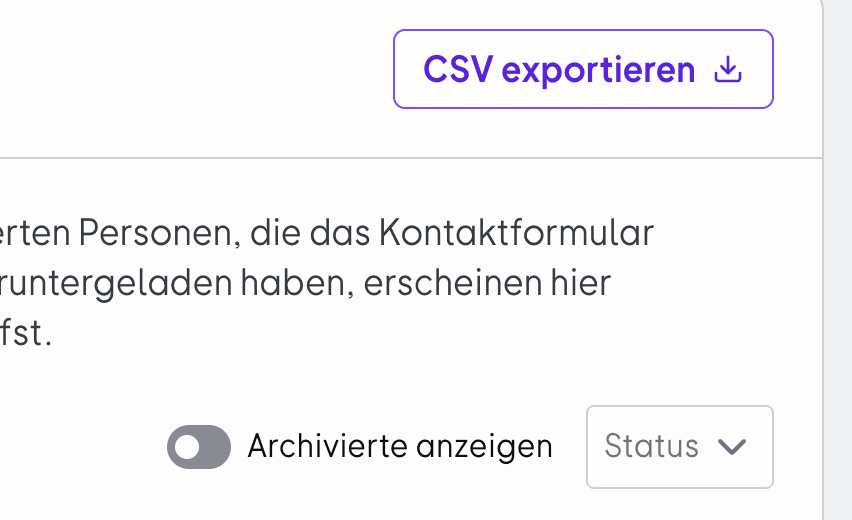
The export lets you use leads from the Leads section in your own systems for further processing or analysis. This means you no longer have to transfer the information from the Leads section one entry at a time.
Who on your team can see leads and who gets notified
These are two different things, and it’s worth checking both.
Everyone in your organization who has admin rights for the relevant product or Business Service profile in OMR Manager can access the Leads Section. If you want colleagues in Sales to see the leads, they’ll need their own account.
👉 Learn more about "Inviting colleagues to OMR Manager"
Email notifications about contact requests and downloads go to the addresses you’ve added as recipients in your product settings. If the address of someone who has left the company is still listed there, notifications about new leads will go nowhere.
👉 Learn more about "Managing recipients for system notifications"
You can always find the complete overview of all your product’s leads in the Leads Section. Notifications let you know when something new comes in. You can manage the leads in OMR Manager.
Best practices: How to work with incoming leads
Respond within minutes, not days
- Problem: Requests from a profile come in irregularly and are often handled on the sidelines of day-to-day work. By the time someone replies, the person has already spoken to other providers.
- Approach: Treat pricing and contact requests like demo requests on your own website. Decide who handles them and within what time frame. In-app notifications and your email distribution list are your two triggers.
- Result: You reach people while they’re still actively comparing options. Research by James Oldroyd, Kristina McElheran, and David Elkington shows that the odds of qualifying an online lead are about seven times higher when you respond within the first hour than when you wait an hour (Harvard Business Review, 2011). This advantage is within reach: In a 2024 test by RevenueHero, which sent demo requests to 1,000 B2B SaaS websites, 63.5% of companies didn’t respond at all. Those that did took more than a day to reply on average.
Use statuses, tags, and notes to track progress
- Problem: When several leads are being handled at once or multiple people on your team are involved, it can quickly become unclear what’s already been done for each lead.
- Approach: Use the status to record a lead’s current progress, and assign tags, for example, to indicate the person responsible or the priority. Add notes to keep track of important points from conversations. The History brings notes and status changes together in one place.
- Result: You can see a lead’s current status right on the lead and track all the steps taken so far. This makes it easier for your team to hand leads over and follow up.
Tailor your approach to the lead type instead of treating every lead the same
- Problem: If every lead gets the same standard email, pricing requests feel undervalued and download leads feel oversold. Both can undermine trust.
- Approach: Use the type chip to identify the lead. For a pricing request, address pricing and terms directly and suggest a conversation. For a contact request, first answer the question in the message field, which you’ll find in the expanded row. For a document download, the person’s interest is in the document’s topic, not your product, so a helpful follow-up resource is a better fit than an offer. For an Engagement Banner lead, refer to your product profile and find out how concrete the person’s needs are in your first message before making an offer.
- Result: Your first message fits the person’s situation. That makes a reply more likely and helps you avoid putting off early contacts with an overly aggressive opening.
Transfer leads to your own system
- Problem: The Leads Section shows you who has reached out. Still, it may make sense to transfer leads to your own systems for your ongoing sales work.
- Approach: Use the export function in the Leads Section instead of transferring information from the list one item at a time. If you want to quickly share individual contact details, you can still use the copy button next to the email address.
- Result: You can process leads more efficiently within your existing workflows without manually transferring information from the Leads Section.
If you want to automatically bring signals from OMR Reviews into your systems, you can do so by integrating the OMRviewer.
👉 Learn more about "Integrating OMRviewer with your CRM"
Use downloads as a signal for your content
- Problem: The download area gets filled once and then goes unchecked, even though it continues to generate contacts.
- Approach: Check the Download tab to see which documents generate requests and which companies they come from. If they match your target audience, consider adding another document along the same lines. If they don’t, the document may be more relevant to a different audience.
- Result: You can expand your download area based on real demand instead of guessing what buyers are interested in.
👉 Learn more about "Tips and best practices for documents in the download area"
 Powered by happysupport.ai