
Best Practice: From Intent Signal to LinkedIn Campaign
Build a LinkedIn ABM campaign using OMRviewer intent data synced to HubSpot or uploaded directly to Campaign Manager, targeting high-intent accounts at 50%…
How to build a LinkedIn ABM campaign from OMRviewer data, step by step, using HubSpot or LinkedIn Campaign Manager directly
A CRM provider generated 249 leads this way. The cost per lead was 50 percent below the LinkedIn B2B benchmark. Rather than targeting a broad audience, this company focused only on accounts that had already actively searched for a solution on OMR Reviews. This article walks you through the process click by click, from creating a Matched Audience to launching your first campaign.
Prerequisite: You have OMRviewer data in your CRM or enrichment tool.
If not, start here: 👉 Best Practice: Integrating OMRviewer Data into Your Tool Stack
Here’s what you’ll find in this article 👇
-
The ABM workflow at a glance
-
Two ways to build a Matched Audience
-
Option A: Sync an audience from HubSpot to LinkedIn
-
Option B: Upload directly in LinkedIn Campaign Manager
-
Set up your campaign on LinkedIn and use your audience
-
Which creative formats work
-
Frequency capping: What you can really control
-
Landing page best practices
-
What this workflow can do for you
The ABM workflow at a glance
Before we get into the click-by-click instructions, here’s the full workflow. Seven steps, from an anonymous website visit to an inbound lead:
- A company visits your profile or a category page on OMR Reviews.
- OMR Reviews resolves the anonymous IP address and identifies the company.
- The company list is sent to your CRM (HubSpot, Salesforce, Pipedrive) or an enrichment tool such as Clay. For details, see the integration article.
- You match the visitors against your ABM target account list and qualify them.
- You use the qualified accounts to build a Custom Audience on LinkedIn, either through HubSpot or directly in Campaign Manager.
- You run campaigns targeting exactly this audience.
- Interested people land on a dedicated landing page, not your homepage.
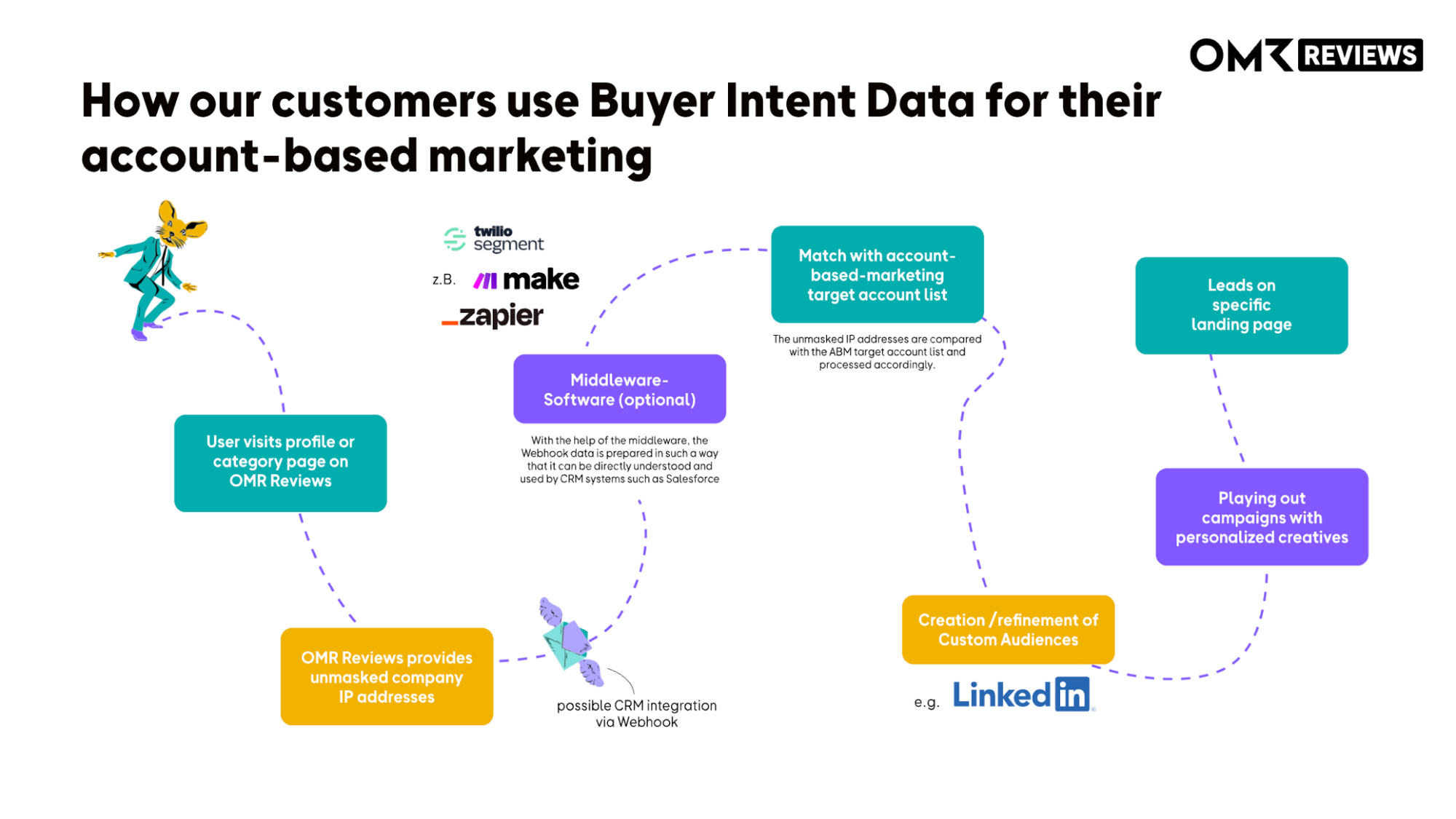
Complete ABM workflow, from the OMR Reviews profile page to the LinkedIn campaign.
👉 Learn more about “Target Account Lists in OMRviewer”
Two ways to build a Matched Audience
A Matched Audience is a list of companies or people that you upload and LinkedIn matches against its member database. This audience then determines your targeting.
There are two ways to build a Matched Audience from OMRviewer data:
- Option A: HubSpot → LinkedIn sync. If you use HubSpot as your CRM, you manage the list in HubSpot and sync it to LinkedIn automatically. The list stays dynamic, with new visitors continuously added.
- Option B: Direct CSV upload in Campaign Manager. If your data is in Clay or another tool, export it as a CSV and upload it to LinkedIn manually. The list is static, so you’ll need to upload it again every time you update it.
Recommendation: Choose Option A if HubSpot is your central CRM. It requires less maintenance and updates automatically. Choose Option B for quick tests or if you work outside HubSpot.
Option A: Sync an audience from HubSpot to LinkedIn
Prerequisites:
- A LinkedIn Ads account with access to Campaign Manager and permission to manage Matched Audiences.
- HubSpot tier: Marketing Hub Starter, Professional, or Enterprise.
- You’re a HubSpot Super Admin or have Ads Access permission.
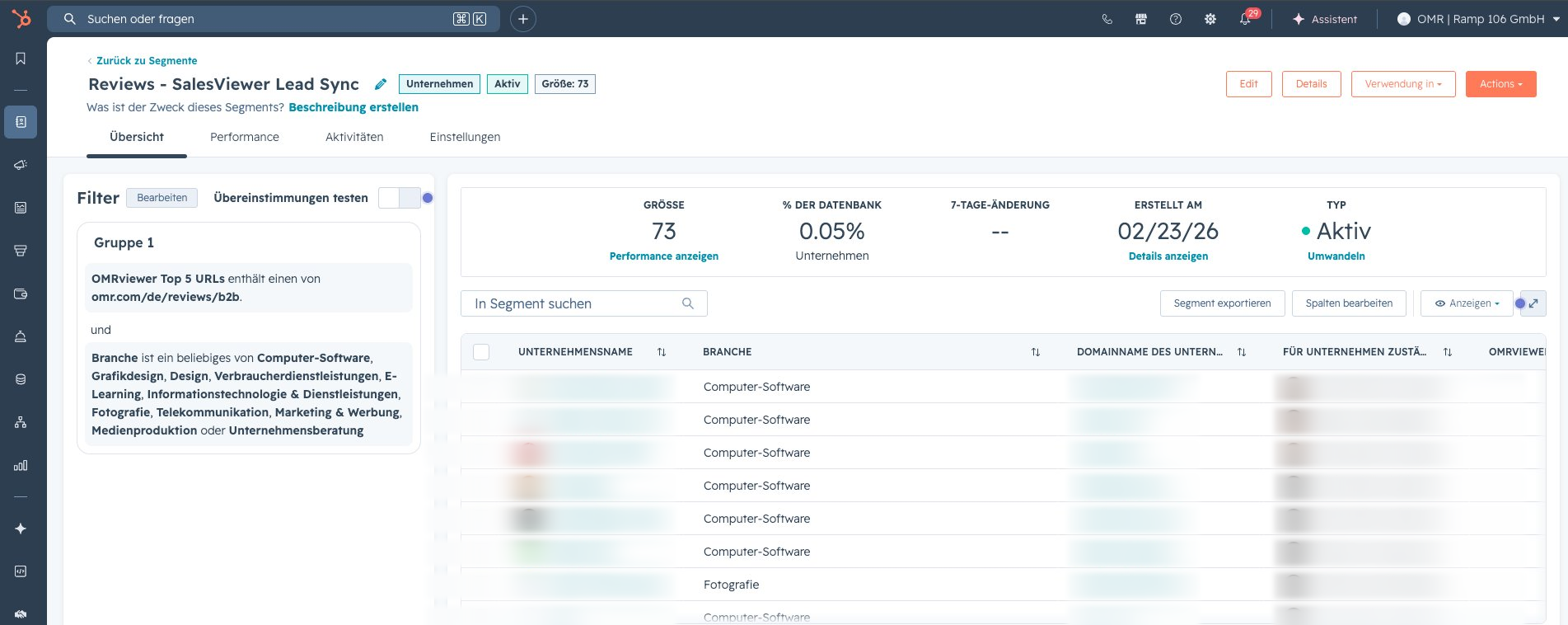
Step 1: Create a segment
Click CRM → Segments (Lists) to create a new list at the company level to use as the basis for your ABM campaign.
When creating the list, search for OMRviewer and select the filter that fits your use case.
Step 2: Create an audience and connect it to LinkedIn
In HubSpot, go to Marketing → Anzeigen (Ads) → Zielgruppen (Audiences). Click Erstellen (Create) in the top right, then select Zielgruppe (Audience).
Select Company Segment to target entire accounts.
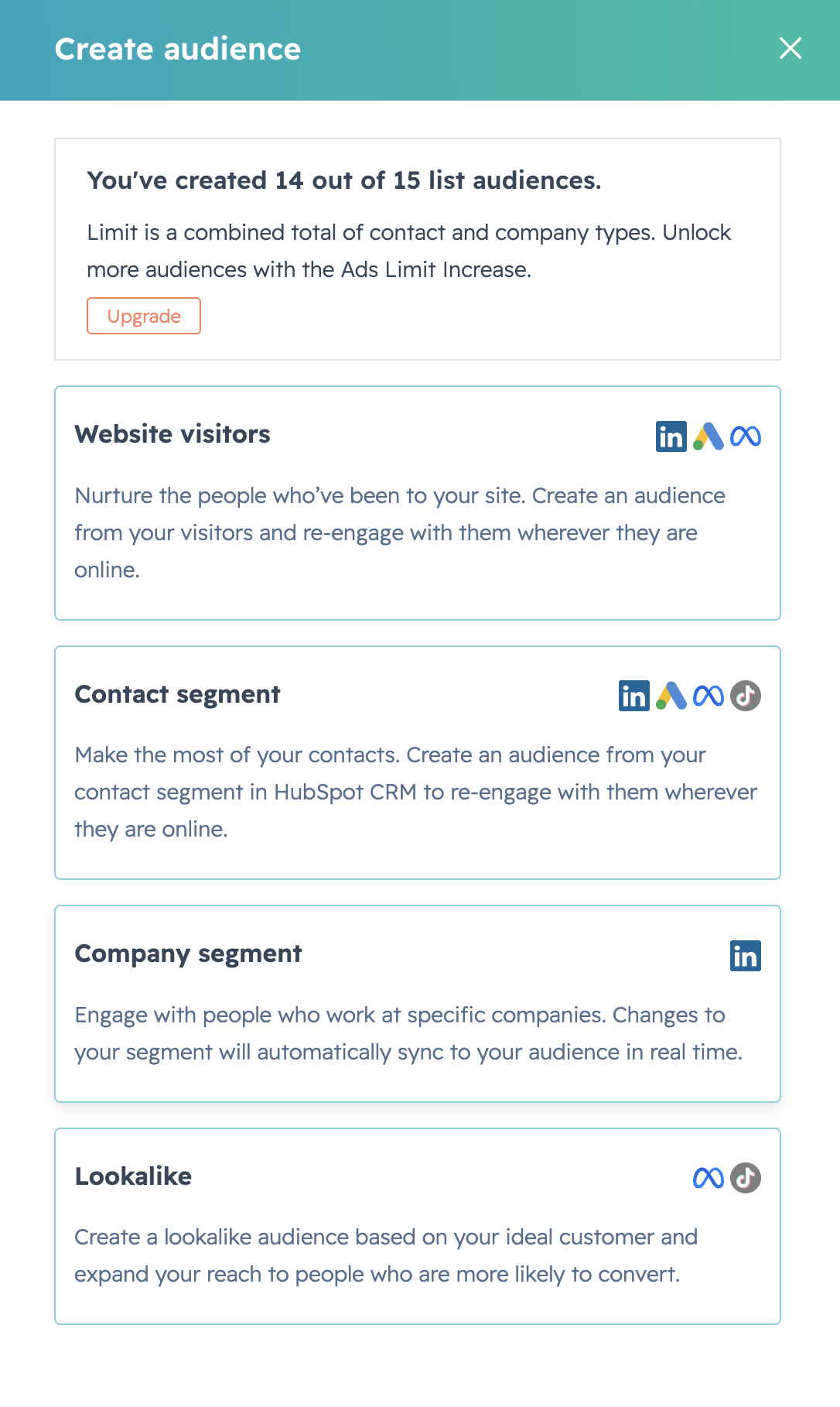
Then select the segment you want to use for your campaign and choose your LinkedIn account as the advertising platform. Name your audience and click Save.
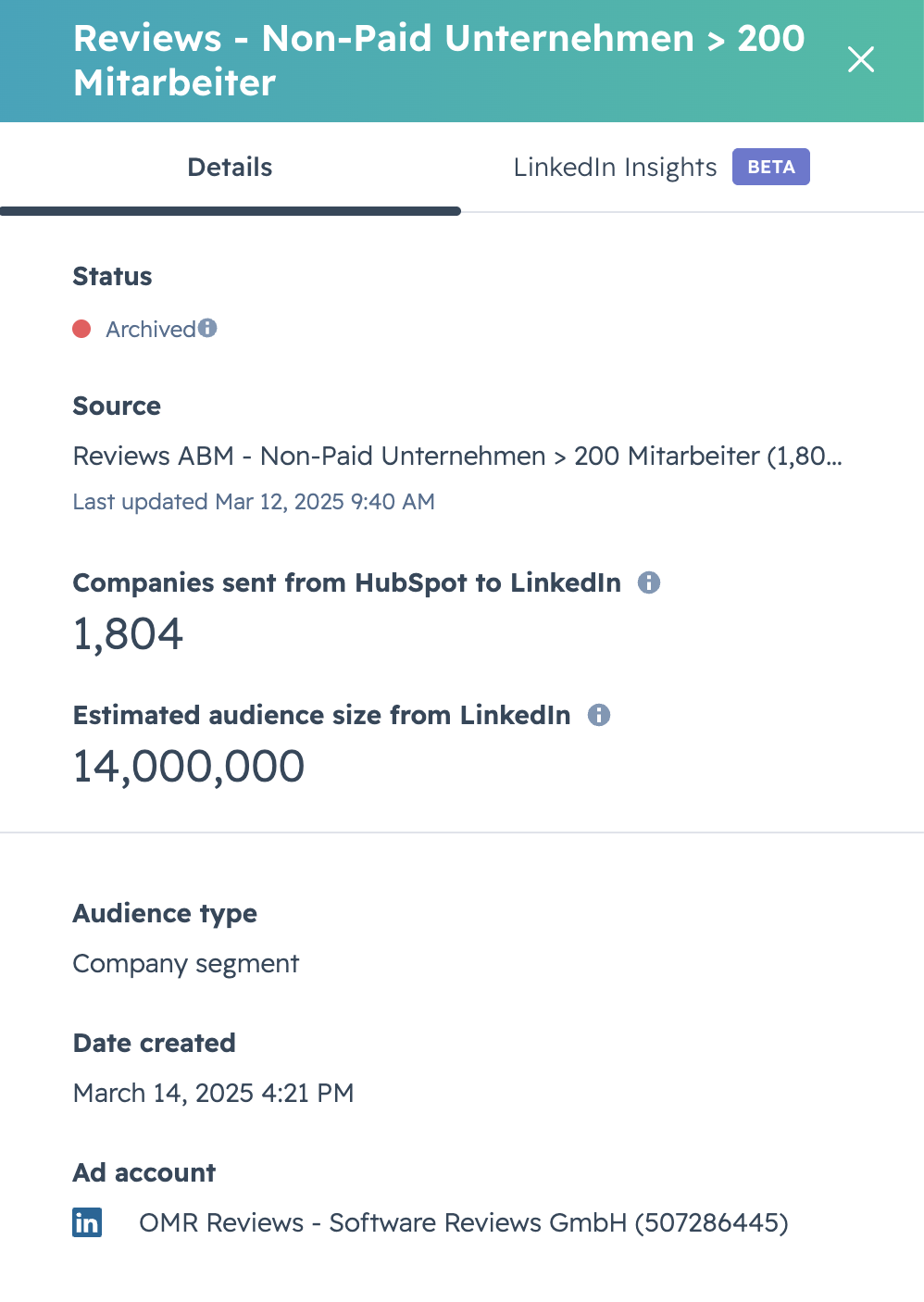
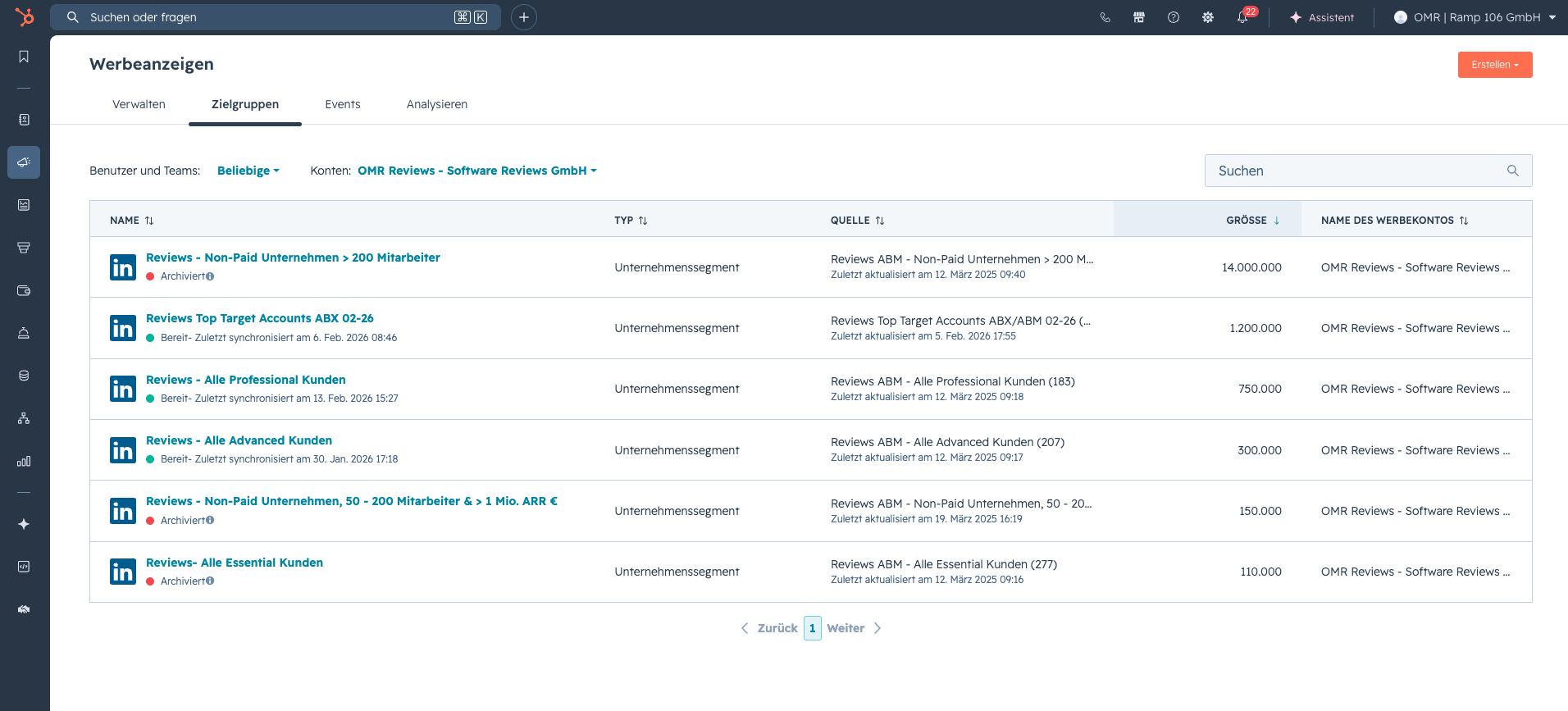
LinkedIn Campaign Manager → Zielgruppen: account list uploaded from Clay after a successful match.
Step 4: Wait for the sync
HubSpot sends hashed identifiers (email, domain, company name) to LinkedIn. LinkedIn matches them and builds the Matched Audience. Wait time: up to 24 to 48 hours. After that, the audience appears in LinkedIn Campaign Manager under Plan → Zielgruppen → tab “Matched”.
Fields transferred:
- For Contact Audiences: first name, last name, phone number, email.
- For Company Audiences: company name, domain, industry.
The audience updates automatically whenever the HubSpot list changes.
Option B: Upload directly in LinkedIn Campaign Manager
If you’re not using HubSpot, for example because you prepared the data in Clay and don’t send it on to your CRM, upload the list directly to LinkedIn.
Step 1: Download the template
In Campaign Manager, click Plan → Zielgruppen on the left. Make sure the Matched tab is selected at the top, then click Zielgruppe erstellen.
Select Company / Contact and click Weiter. Under List type, select either Company list (for account-based targeting) or Contact list. Click the “Download a template” link to download the appropriate CSV template.
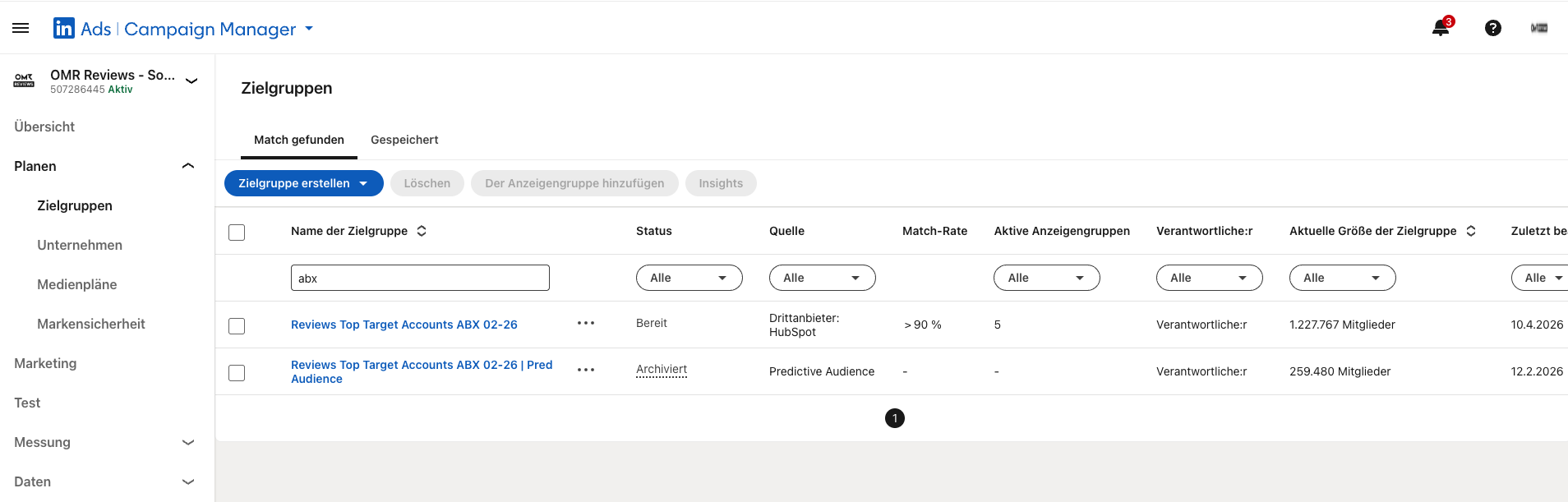
HubSpot Anzeigen → Zielgruppen: synced lists for LinkedIn ABM.
Step 2: Fill in the CSV with OMRviewer data
Important: Don’t change the template’s header row, or the upload will fail.
For a Company List, these columns are useful:
companyname(required)companywebsite(significantly improves the match rate)linkedincompanypageurl(improves the match rate to 90+ percent)companyemaildomains,industry,country(optional, helps refine targeting)
For a Contact List:
email(required; business email addresses deliver significantly higher match rates than personal ones)firstname,lastname,companyname,title,country(optional)
Export the columns from Clay using exactly these names to avoid import conflicts.
Step 3: Upload your list
Back in Campaign Manager: click Audience benennen, choose List type, click Liste auswählen, upload the finished CSV from your computer, then confirm „Akzeptieren & hochladen".
Requirements LinkedIn checks internally:
- At least 300 rows in the list.
- At least 300 LinkedIn members must be matched before the audience can be used in a campaign.
- Maximum size: 20 MB or 300,000 entries.
Step 4: Wait for processing
LinkedIn matches the entries against its member pool. Processing time: up to 48 hours, and longer in rare cases. Once processing is complete, you’ll find the audience under Plan → Zielgruppen → Reiter „Matched".
Match rates you can realistically expect:
- Account lists with a domain and LinkedIn Page URL: 90 to 98 percent.
- Account lists with company names only: 70 to 80 percent.
- Contact lists with business email addresses: 70 to 85 percent.
- Mixed contact lists with personal email addresses: 40 to 70 percent.
Tip: Combine your account list and contact list in two separate audiences. The account list gives you broad coverage, while the contact list helps you target specific buying committee members.
Set up your LinkedIn campaign and use your audience
Whether you use Option A or B, you can use the audience in a campaign as soon as it’s marked as ready in the Matched tab.
Step 1: Create a new campaign
In LinkedIn Campaign Manager, click Kampagnen → Kampagne erstellen. Choose an objective that fits your offering:
- Lead Generation: for demo requests or content downloads using a native lead gen form.
- Website Conversions: if you want leads to convert on your own landing page.
- Brand Awareness: for reach campaigns when you’re warming up an audience at an early stage.
Step 2: Select your audience
In the Wer ist deine Zielgruppe? section, click Audiences → Matched audiences and select the list you just created.
You can add more targeting layers if needed:
- Job Function and Seniority let you filter for buying committee members, typically managers and above in relevant functions.
- Job Title lets you target specific roles very narrowly.
- Don’t make your targeting too narrow: fewer than 50,000 members left in the filtered audience often leads to high CPMs.
Step 3: Choose your format, budget, and bidding strategy
Choose a format (Single Image, Document, Video, or Conversation Ad). Set a daily or total budget. The default bidding strategy is “Maximum Delivery.” For ABM campaigns, “Manual Bidding” with your own CPC cap is often a better choice.
Step 4: Add your creatives
Create at least three creative variations per campaign. LinkedIn rotates them and prioritizes the better-performing ones. The next section covers which formats work well for this workflow.
Step 5: Set a frequency cap
Before launch, configure the Frequency Cap under Optimierung & Ausspielung. Recommended: 3 to 4 impressions per member per week. See below for details.
Step 6: Launch
Activate your campaign. Delivery typically starts within 24 hours.
Which creative formats work well
Your ad content determines whether someone clicks or scrolls past. Three formats have proven effective for ABM audiences using OMR Reviews intent data.
Download offers (reports, guides, white papers)
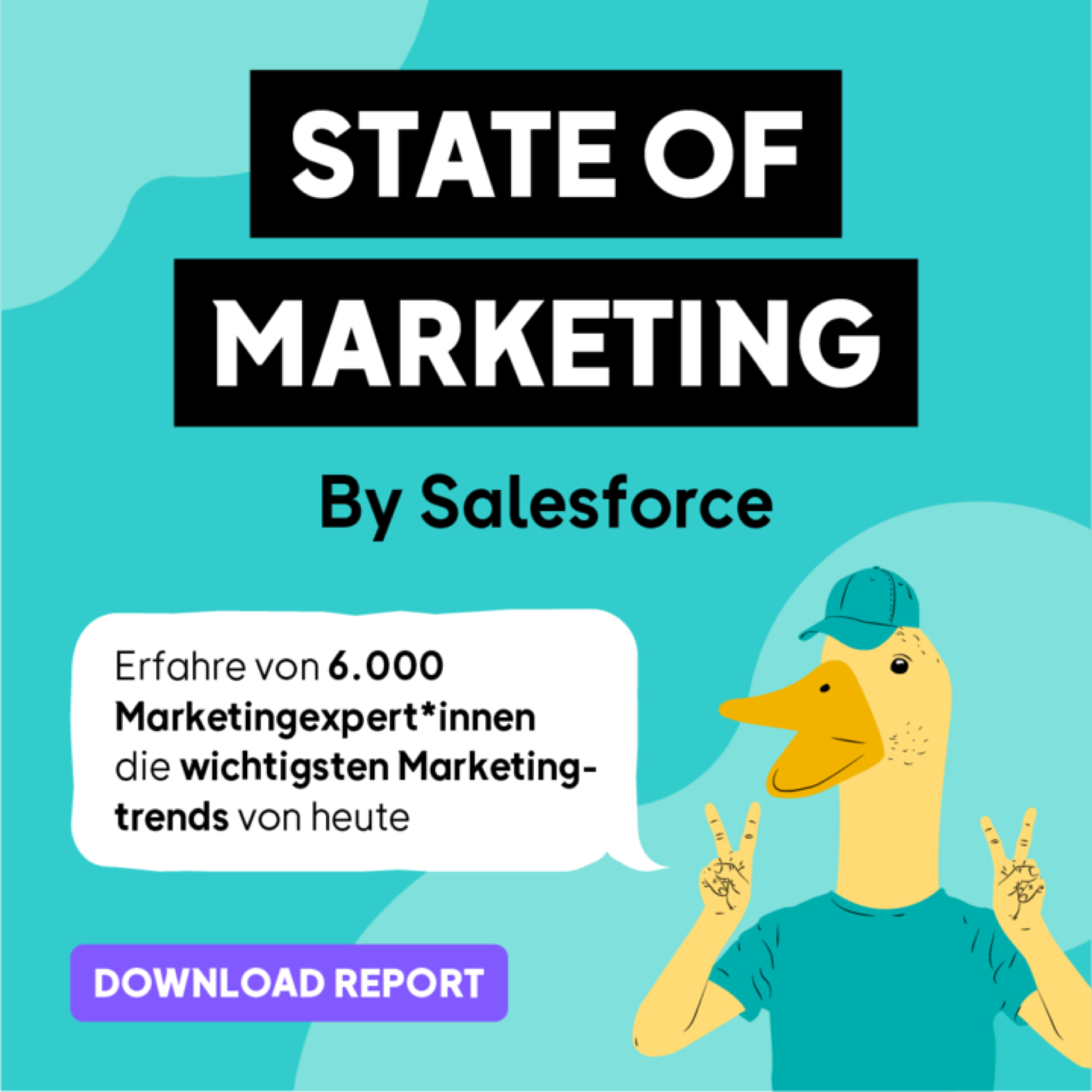
A specific free offer is a good way to get started. Examples include a State of Marketing report, a marketing automation guide, or a comparison guide (“Why you should choose X over Y”). The offer needs to provide genuine value, not hide a sales pitch.
Example: Report download ad with a clear value proposition:
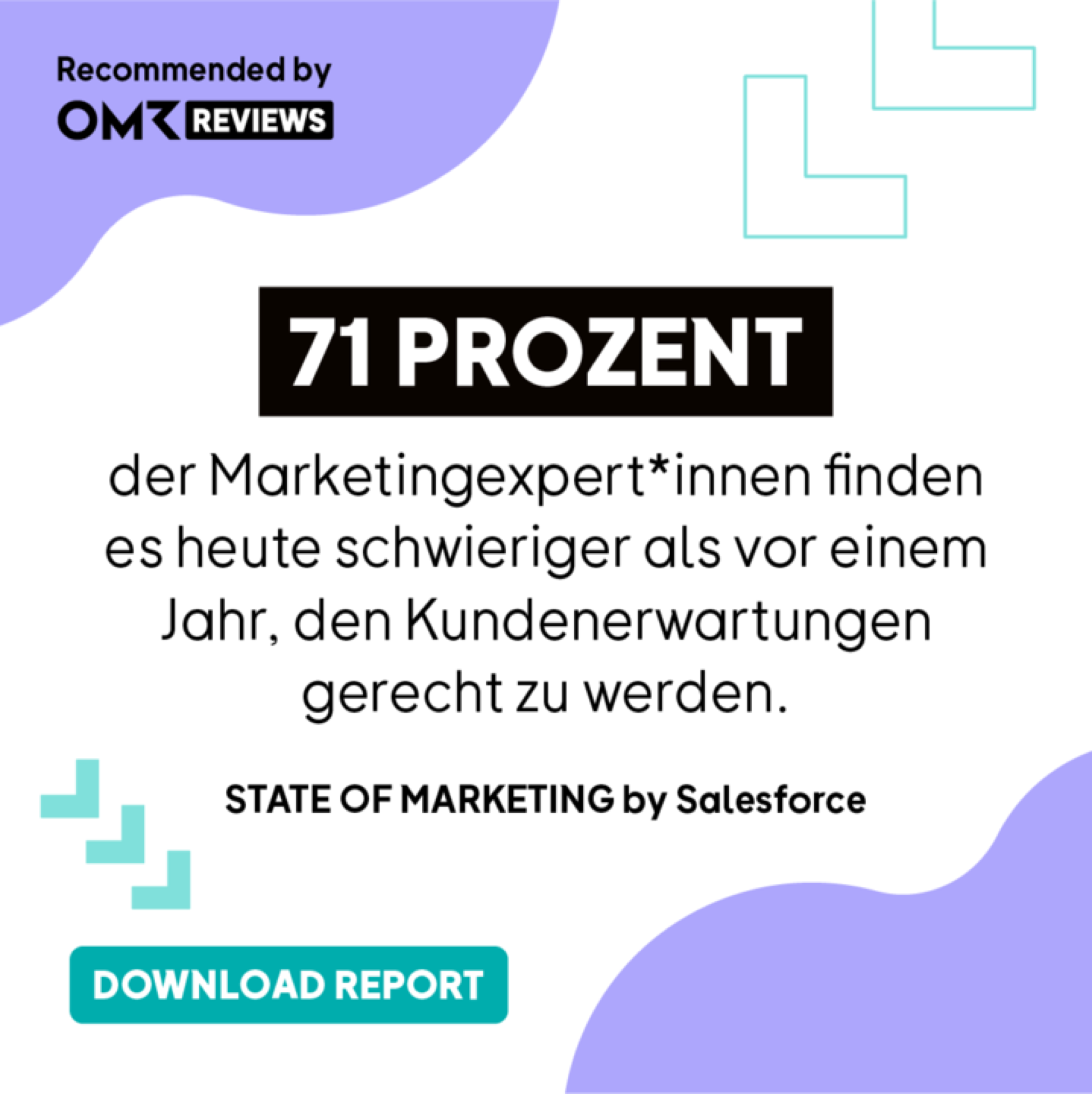
Example: Data-driven ad that prominently features a single data point:
Review-based ads with social proof
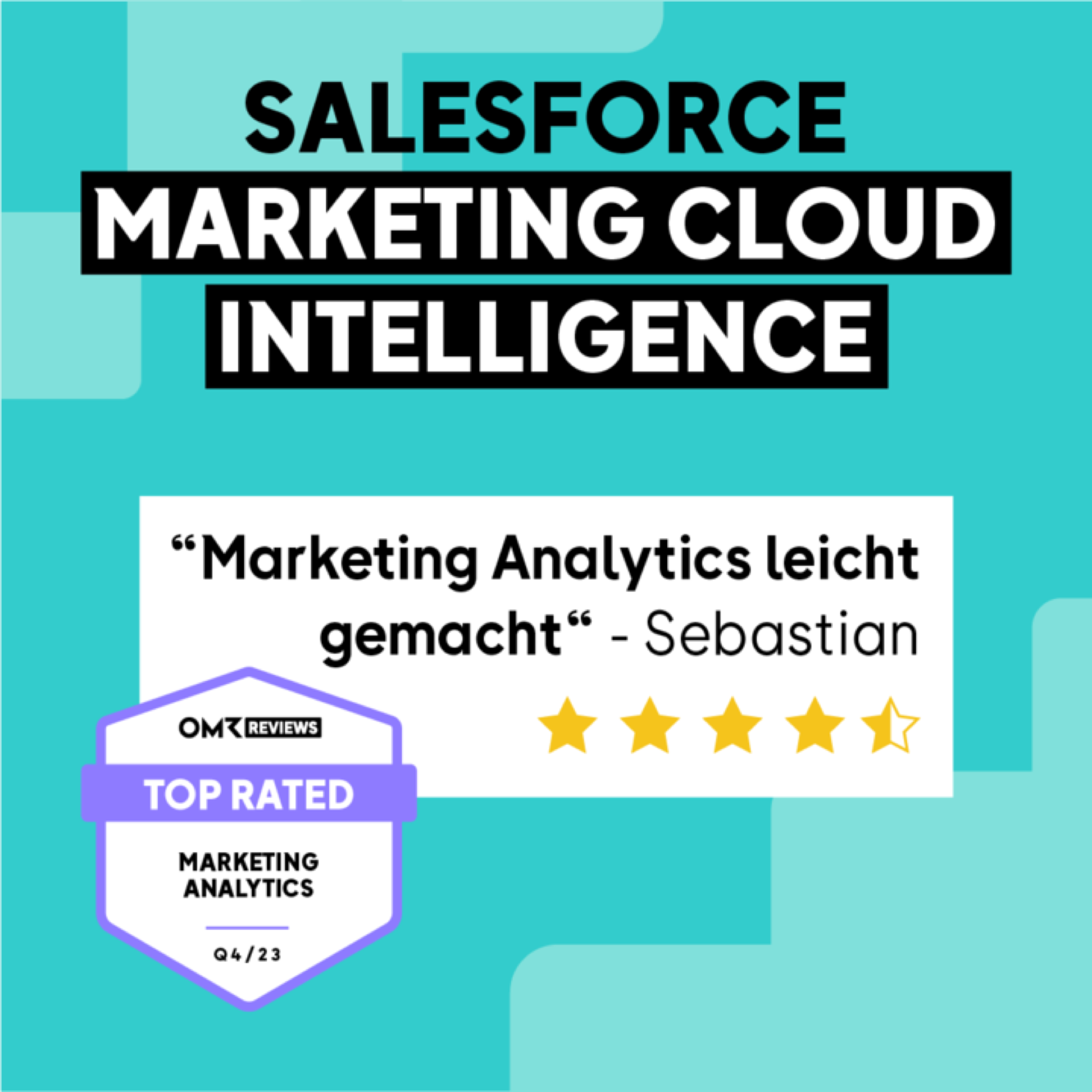
Use your OMR Reviews ratings and awards directly in your creatives. Genuine customer quotes, star ratings, and OMR badges (“Leader,” “Top Rated,” “Used by OMR”) build credibility, especially with audiences that are actively exploring the market.
Example: Testimonial ad with an OMR Top Rated badge:
Webinar and event invitations
If you’re offering a webinar or live event, it can be a powerful approach: it’s a low-commitment option for prospects and gives you valuable information.
Avoid direct sales messages on first contact. The audience has shown interest but hasn’t made a purchase decision yet. Offer value first, and make your sales pitch later.
Frequency capping: What you can really control
Without a frequency cap, 80 percent of your budget can end up going to 20 percent of your accounts because LinkedIn’s algorithm prioritizes people who have already interacted with your ads.
Since 2025, LinkedIn has offered native frequency capping for Brand Awareness campaigns. Recommended: 3 to 4 impressions per person per week. Ad fatigue typically sets in above 6 impressions per week.
Important limitation: LinkedIn’s native capping works at the member level, not the company level. In an account with 5,000 people, your budget can still be disproportionately spent on a few power users. For true company-level capping, you’ll need third-party tools such as Factors.ai or comparable ABM platforms.
For ABM campaigns using OMRviewer audiences, a sensible rule of thumb is 40 to 100 impressions per buying committee member per month during the consideration phase, and 100 to 120 during the active intent phase.
Landing page best practices
Your campaign drives traffic, but your landing page determines whether that traffic turns into leads. Don’t send visitors to your homepage. Dedicated landing pages convert at an average of 13 percent in B2B, compared with 2 to 3 percent for homepages. That’s 4 to 6 times higher.
Here’s what works on high-converting landing pages for software providers:
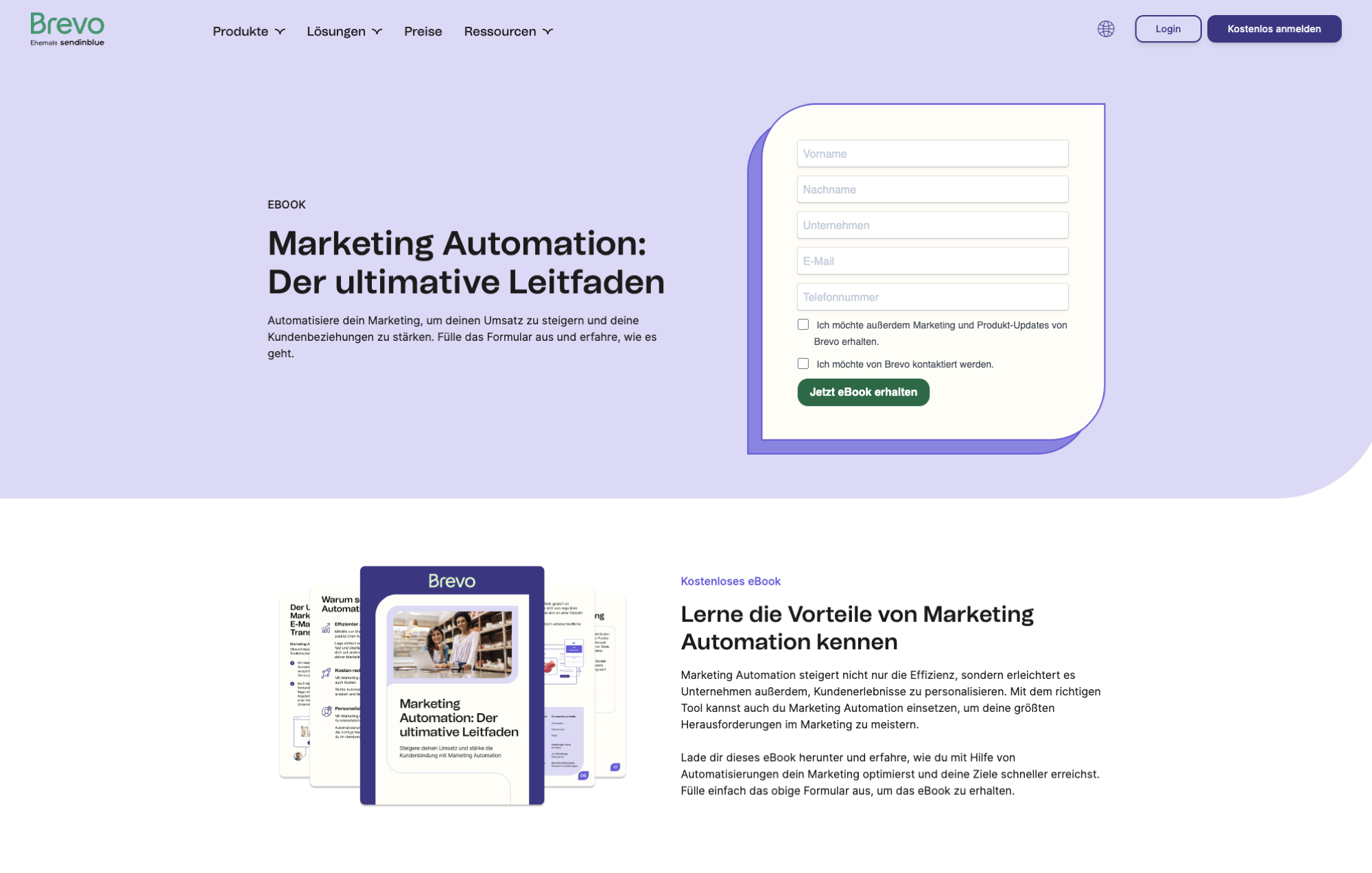
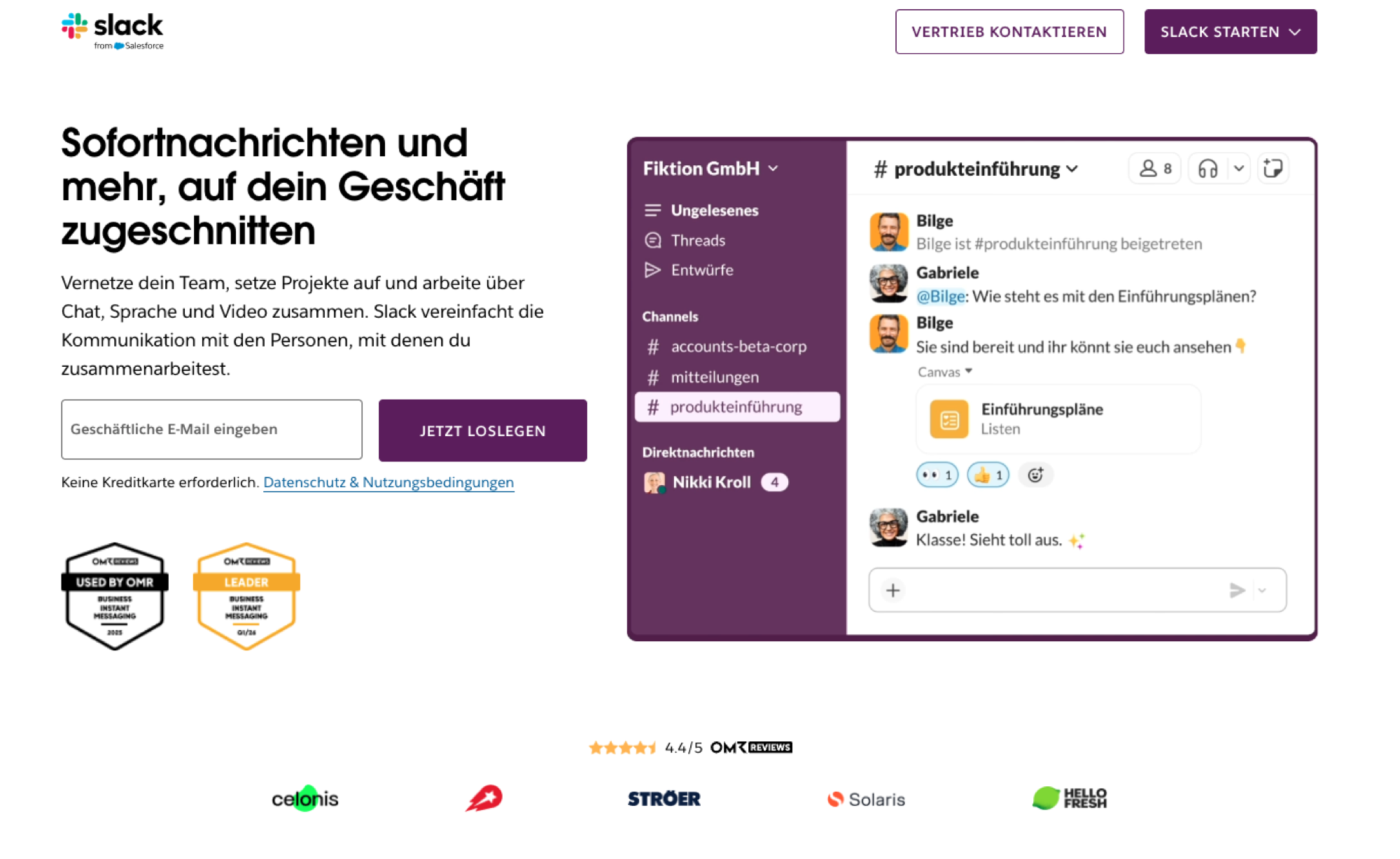
Feature OMR awards prominently. Badges such as “Leader,” “Top Rated,” or “Used by OMR” are trust signals that resonate with DACH audiences. Place them above the fold, not in the footer. Slack, moinAI, and Brevo are good examples: they place badges right next to the main CTA or below the headline.
Slack landing page: OMR “Used by OMR” and “Leader” badges right next to the CTA.
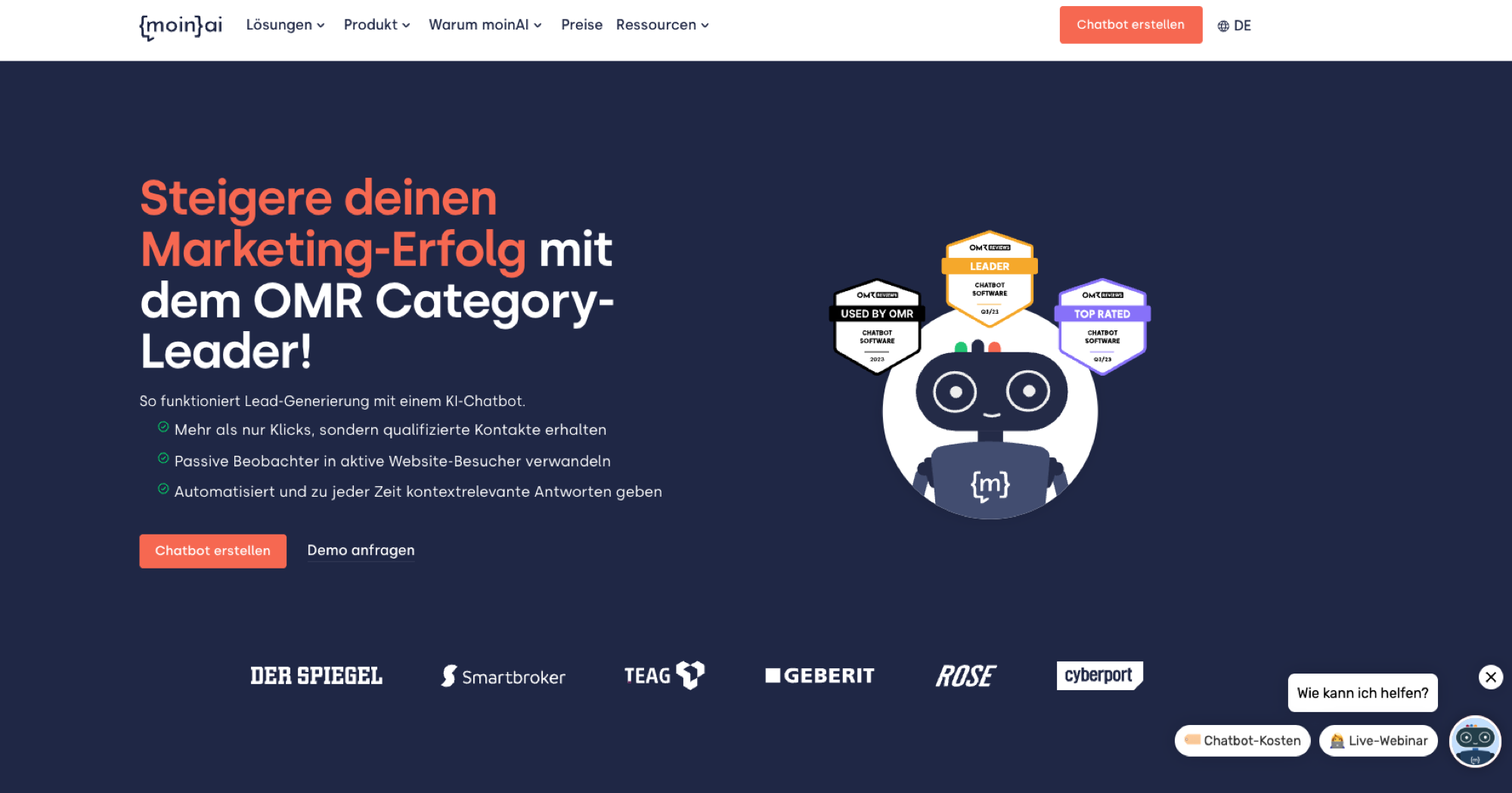
moinAI prominently features several OMR awards in the hero section.
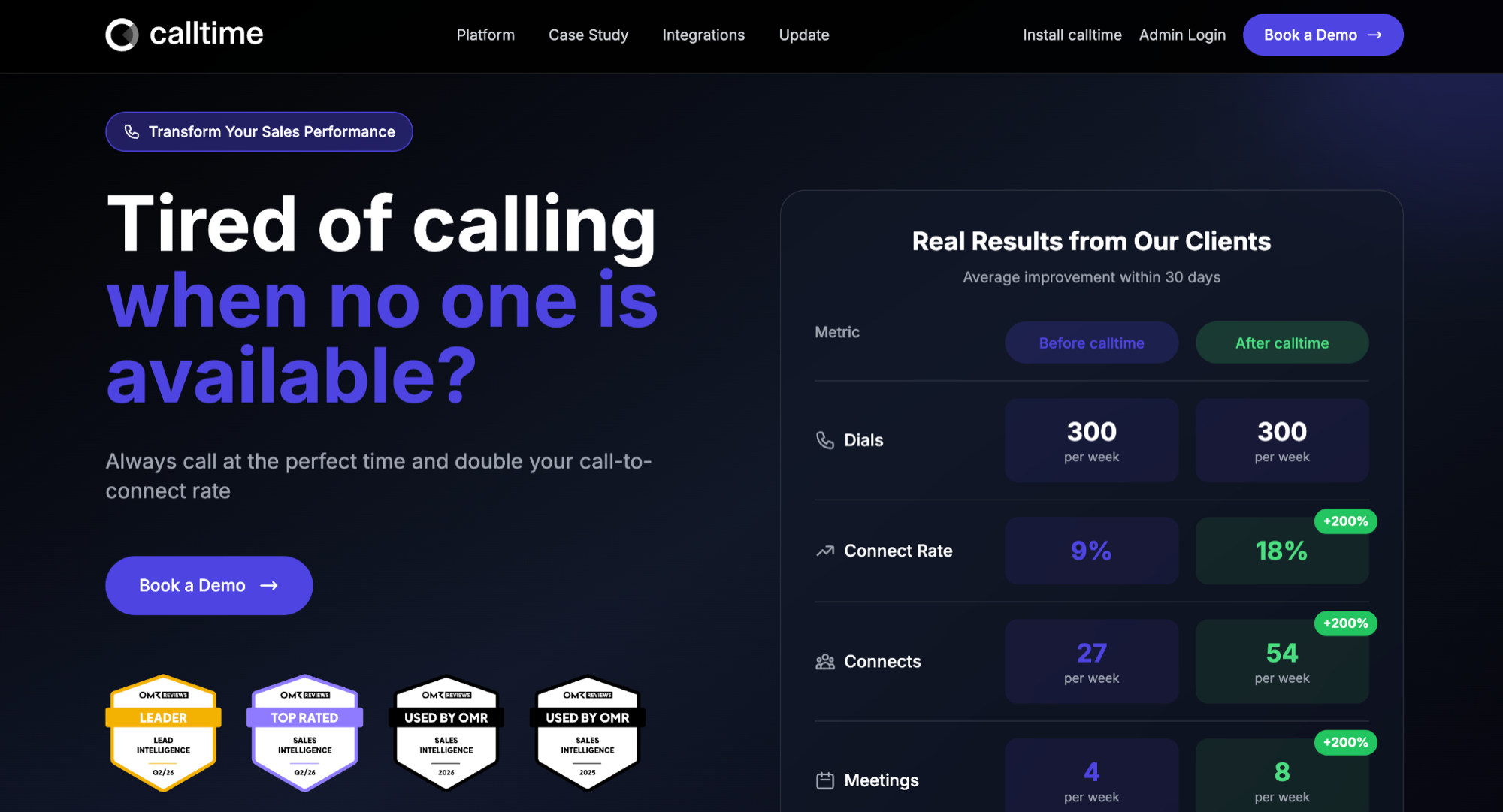
Calltime combines four OMR badges right below the main CTA.
Use a clear CTA with a low-commitment first step. “Request a demo” can be too much at an early stage. “Download the guide,” “Save your spot at the webinar,” or “Get the free guide” tend to convert better because they require less commitment than a conversation.
Brevo: dedicated landing page with a lead magnet and lead form above the fold.
Build social proof with customer testimonials and logos. Genuine reviews, quotes, and company logos help visitors make an informed decision. You can use your OMR Reviews ratings directly.
Make sure the headline matches the offer in your ad. If someone clicked on “Marketing Automation Guide,” that exact offer should appear at the top of the landing page. Don’t use a generic product description.
👉 Find out more in “Best Practice: LinkedIn Outreach”
What this workflow can do for you
A CRM technology provider generated 249 leads using this exact approach: using OMR Reviews buyer intent data as the foundation for LinkedIn ABM. The CPL was 50 percent below LinkedIn’s B2B benchmark of €100 to €150 per lead. The results came down to audience quality, not budget.
To get the same results from this workflow, you need three things:
- High-quality audience data. Account lists with a domain and LinkedIn Page URL match much better on LinkedIn than contact lists or lists containing only company names.
- Creative that fits the stage. Intent audiences are in the early evaluation stage, not ready to talk to sales. Lead with value propositions rather than demo requests.
- A dedicated landing page. Conversion rates are 4 to 6 times higher compared with the homepage.
Want to set up this workflow? Get in touch with your Customer Success Manager. They’ll help you find the right integration option for your plan and set up your API key.
👉 Learn more about “Integrating OMRviewer data into your tech stack”
 Powered by happysupport.ai