
Employee Count in OMRviewer
Filter Buyer Intent data by employee count ranges in OMRviewer to segment companies and customize your sales approach based on organizational size
How to use segmentation for relevant messaging and prioritization
In OMRviewer, you can filter Buyer Intent data by employee count. Filtering lets you segment identified companies and organize intent signals in a structured way.
This article explains how filtering works in OMRviewer and how you can use it in your marketing and sales processes.
In this article 👇
- Why filter by employee count?
- How filtering works in OMRviewer
- Use cases
Why filter by employee count?
Employee count provides additional structural context for strategically interpreting Buyer Intent signals. It helps you consider interest in the context of the organization rather than in isolation.
Knowing a company’s employee count can provide insight into, among other things:
-
The structure and complexity of decision-making processes
-
Different information needs and expectations
-
The appropriate style and level of detail for communication
-
How data can be used in subsequent marketing, sales, and CRM processes
Filtering by employee count lets you:
-
Organize Buyer Intent data into segments
-
Use it as a basis for tailored messaging
-
Pass it consistently into downstream processes
Employee count is not used as an evaluation criterion. Instead, it is a tool for deriving the right approach within your existing marketing and sales processes.
How it works
Create and save a filter
-
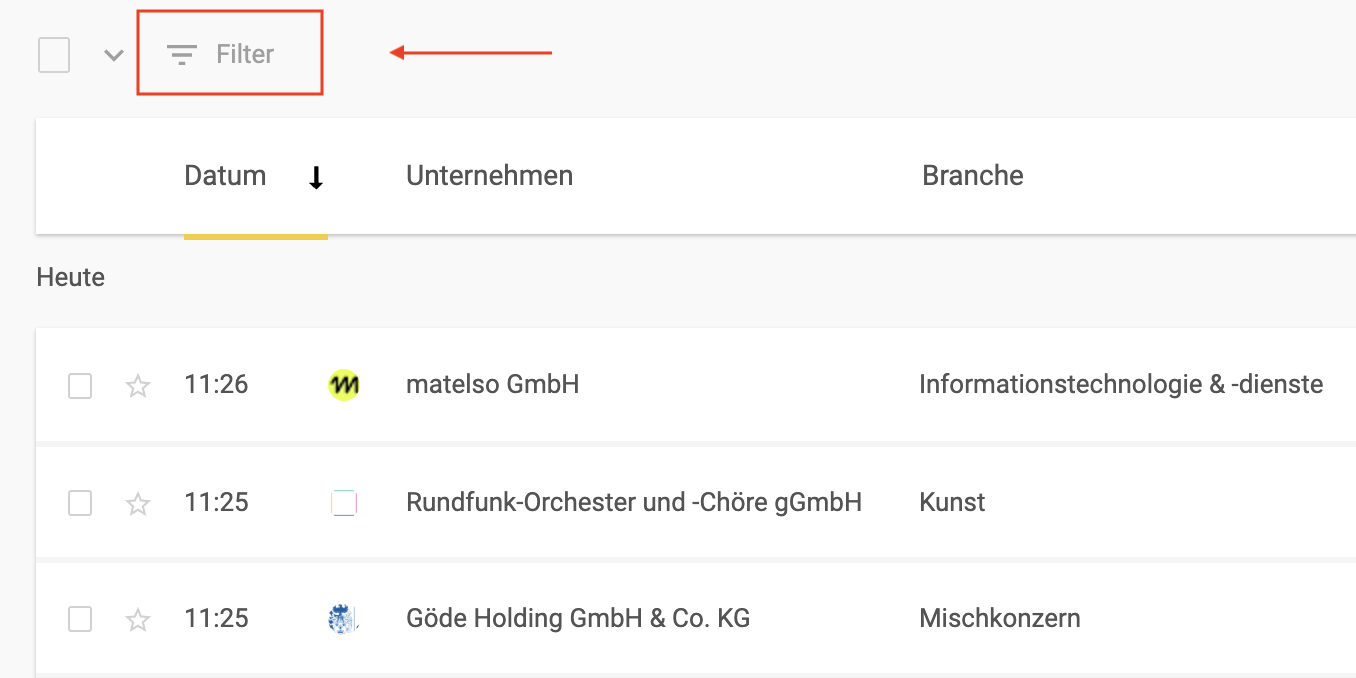
In the overview list of identified accounts, click “Filter” in the top-left corner. (You can access the list via “Sitzungen” or “Unternehmen” in the sidebar.)
-
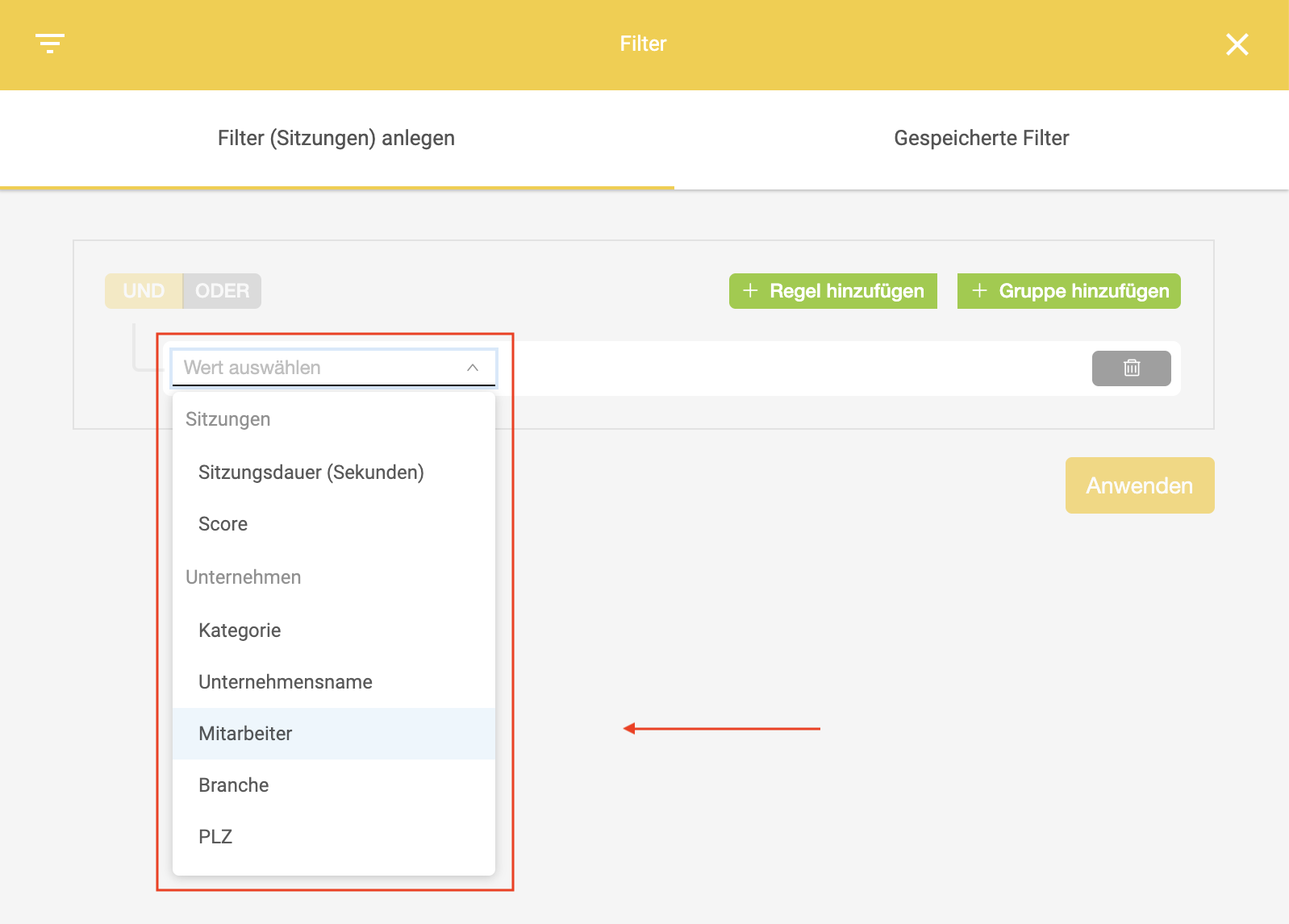
A panel with all available filter options opens on the right.
-
Select the “Mitarbeiter” filter.
)
-
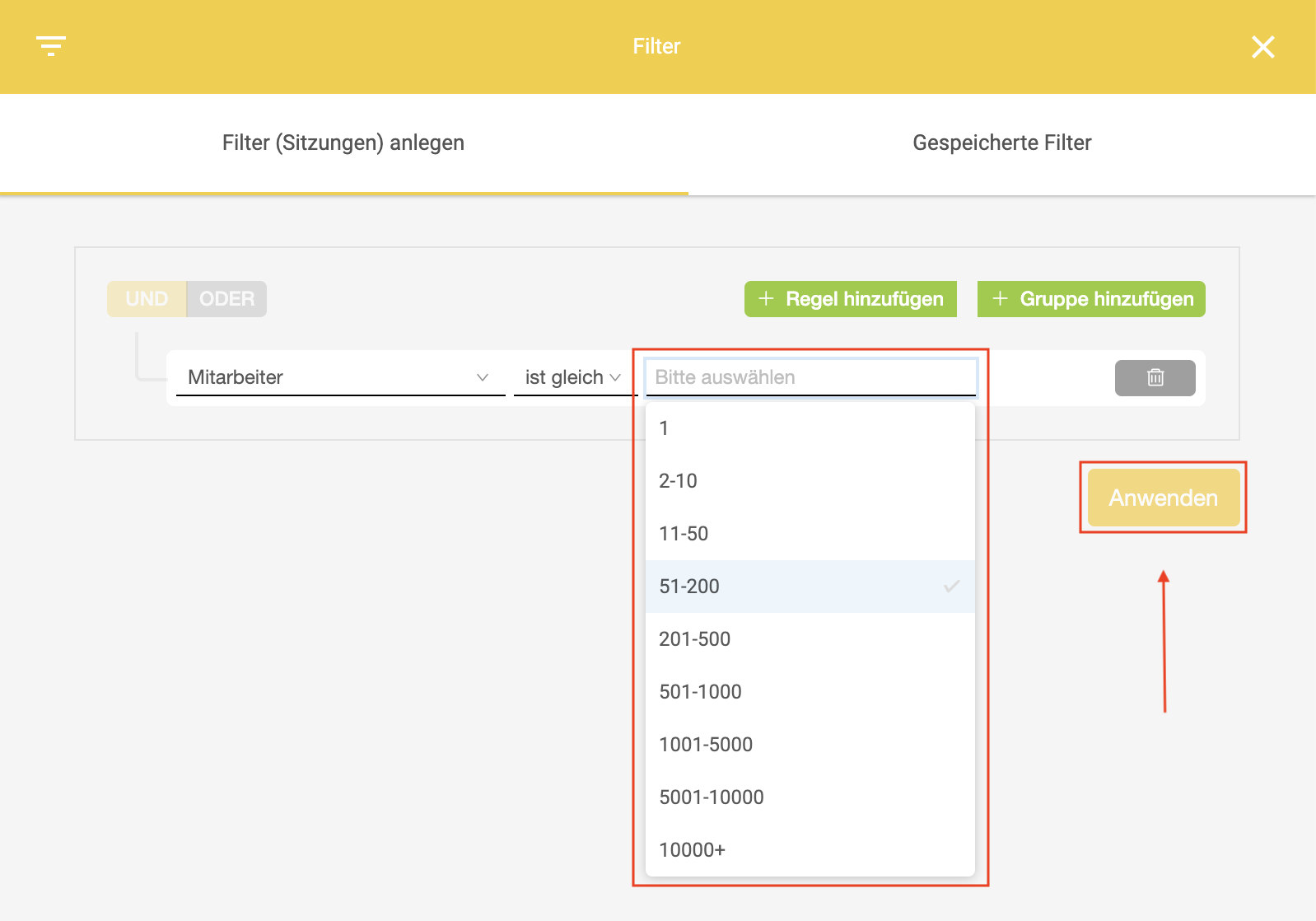
Select one or more employee size ranges.
-
You can add more filters if you like.
-
Click Anwenden to create a new filter.
OMRviewer displays employee counts in predefined employee ranges:
-
1–10 employees
-
11–50 employees
-
51–200 employees
-
201–500 employees
-
501–1,000 employees
-
1,001+ employees
Combine with other filters
For example, you can combine employee count with the Intent Score to further prioritize Buyer Intent signals within defined segments.
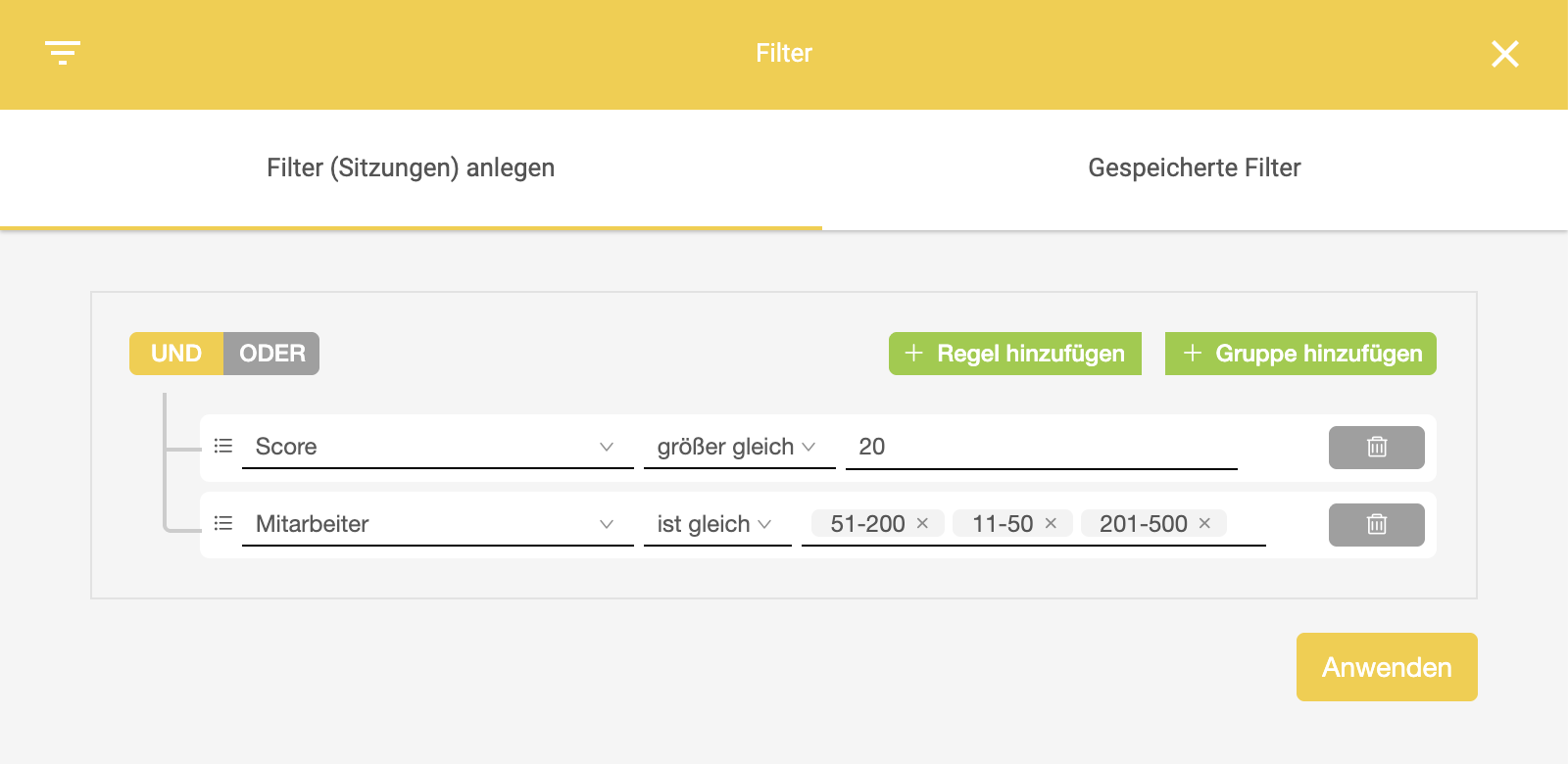
Example:
-
Employee count: 201–500 employees
-
Intent Score: > 20
This helps you identify companies that show increased interest and match a clearly defined target segment.
-
The more filters you combine, the smaller the result set becomes.
-
Add filter combinations step by step and check the resulting data volume.
Use cases
Prepare segmented outreach lists
Filtering by employee count lets you prepare lists of identified companies so they’re ready to use in outreach processes. In practice, this means working with clearly defined segments, such as 11–50, 51–200, or 1,001+ employees, rather than with one “master list of all interested companies.”
-
Make the list more consistent: Companies of a similar size often have comparable circumstances, such as team structures and procurement processes, making outreach lists more consistent.
-
Make outreach easier to manage: Teams can prioritize outreach activities and plan them in waves, for example, by starting with a high-fit segment and then moving on to the next, instead of treating every company the same regardless of context.
Combining employee count with other filters, such as Intent Score, lets you tailor outreach lists based on data and focus on the companies that matter most to you.
Develop different messaging approaches
Employee count provides a structural indication of how decision-making is typically organized and what information is relevant in a given context. This doesn’t mean that all companies in a given size range act the same way. However, company size gives you a reliable basis for structuring communication systematically and planning different approaches.
Typical ways to tailor your messaging include:
-
Level of detail: Some segments need more contextual information, such as background, comparisons, or implementation considerations. Others may prefer clear key points and quick guidance.
-
Lines of argument: Depending on the segment, you may want to emphasize different aspects of your communication, such as implementation, organizational requirements, or technical integration.
-
Tone and level of detail: Segmentation helps you manage the level of detail consistently, from short, clear introductions to structured information covering criteria, requirements, and next steps.
Hand off Buyer Intent data to Sales in a structured way
Without segmentation, Sales often receives a mixed list that requires additional manual review: “What kind of account is this?”, “How relevant is it to my area?”, and “How should I approach this company?”
Filtering by employee count improves the handoff because it:
-
Enables context-based prequalification: Sales can immediately see the account’s size range.
-
Supports routing and ownership: For example, you can assign different teams or playbooks to different segments, if that’s how your internal processes are set up.
-
Enables segment-based outreach: For example, you can develop different communication approaches for each segment.
Enrich accounts and contacts in your CRM
Employee count is a key CRM dimension because it supports segmentation, reporting, and process logic. When Buyer Intent data is sent to your CRM through the OMRviewer integration, employee count is especially useful for:
-
Segment fields and views: You can show accounts in segmented CRM lists, dashboards, or campaign workflows.
-
Consistent reporting: You can analyze performance, such as outreach success and pipeline development, by segment.
-
Automations and rules: You can align workflows such as assignments, sequences, tasks, or campaigns with segments, depending on your CRM setup.
 Powered by happysupport.ai