
Review Campaigns in OMR Manager
Create trackable review campaigns in OMR Manager with custom duration, incentives, and budget limits to measure collection performance by channel.
Create trackable campaigns to collect reviews for your OMR Reviews profile.
Learn how to create links for your review campaigns in OMR Manager. Set the campaign duration, incentives, and limits, then see at any time how many reviews have been published for each campaign and how much of your budget has already been spent.
This article covers the following topics 👇
-
How do review campaigns work?
-
How to set up a review campaign
-
The campaign overview
-
Campaign details
-
Best practices
How do review campaigns work?
A review campaign is based on a dedicated, trackable invitation link created for a specific purpose or channel, such as a newsletter, QBR, or onboarding email. You set the duration, incentive (Amazon or Wunsch-Gutschein gift card), amount, and limits (budget, number of published reviews, and time period). All results and the reviews you collect are attributed to each campaign.
The goal is to collect more high-quality reviews for your OMR Reviews profile, with clear attribution for each activity or channel.
-
🔗 Clear attribution: Each link is assigned to a campaign. You can see how many published reviews each channel generates.
-
🎁 Incentives to suit your needs: Amazon or Wunsch-Gutschein gift cards in an amount of your choice, with a budget or quantity limit.
-
📆 Control over planning and duration: Run time-limited campaigns, such as for a launch, event, or quarter-end, or campaigns with no end date.
-
📊 Transparent reporting: Budget (spent/remaining) and reviews received are shown for each campaign. You can measure the success of your campaigns individually.
-
⚙️ Easy to automate: Add links to marketing automation and CS processes, such as email footers or NPS flows.
Typical use cases:
-
Campaigns for each email sequence
-
In-app nudges
-
Webinar follow-ups
-
CS footers
-
ABM outreach, and much more
How to set up a review campaign
Step 1: Go to the campaigns section
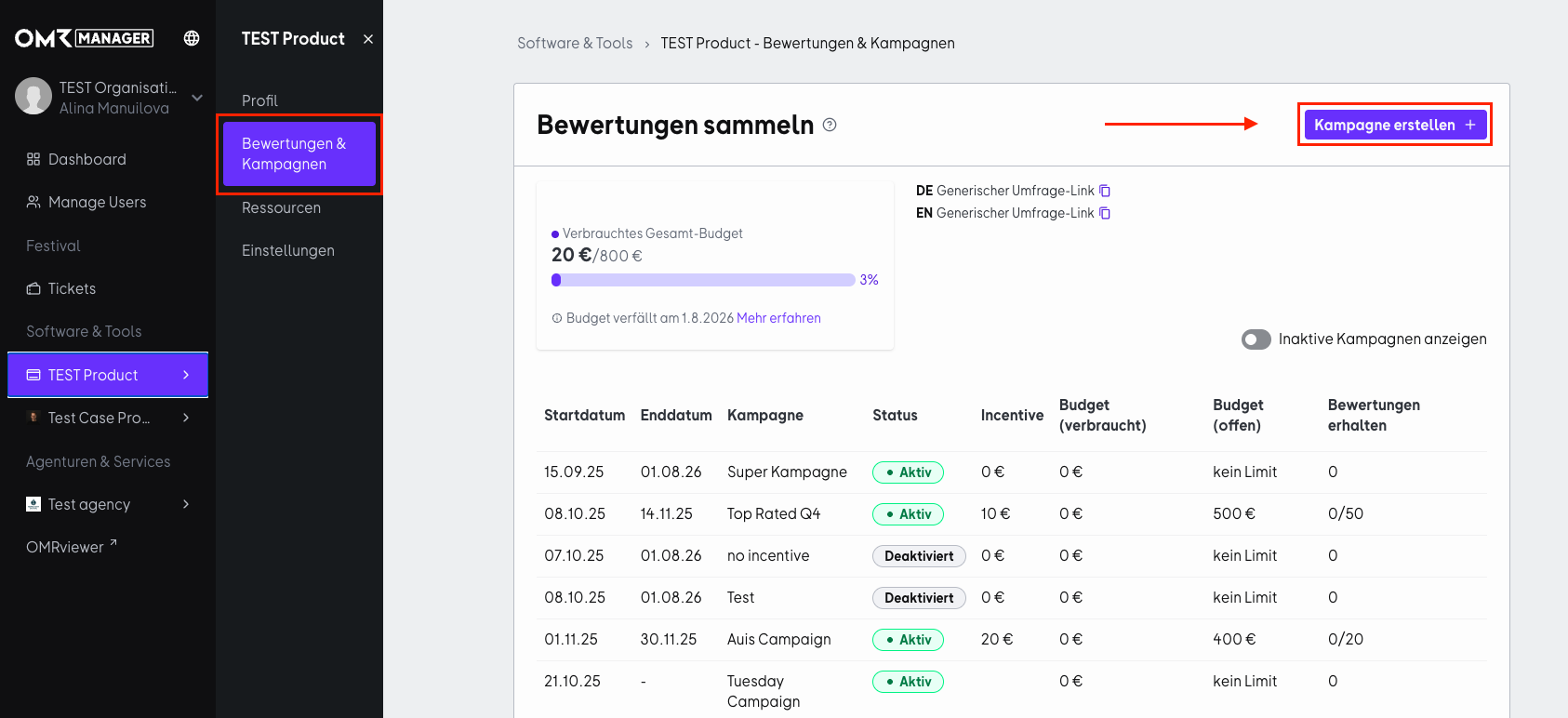
In the OMR Manager sidebar, go to Software & Tools → [Dein Produkt] → Bewertungen & Kampagnen and click „Neue Kampagne erstellen“ in the top right.
Step 2: Add campaign details
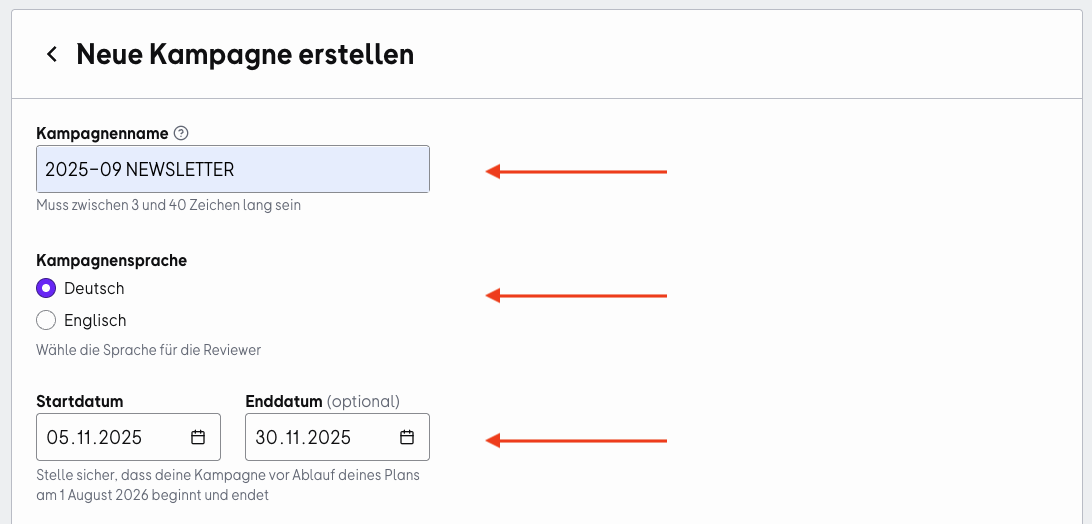
Enter a name (visible internally) and choose the campaign language for reviewers.
Set a start date and, optionally, an end date.
Tips:
-
Use consistent naming conventions, such as
YYYY-MM Channel Region. -
The marketing channel is used for internal attribution, making it ideal for reports and team-wide visibility.
Step 3: Choose an incentive
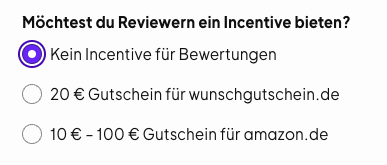
Under „Möchtest du Reviewern ein Incentive bieten?“, choose whether to offer reviewers an incentive, such as an Amazon or Wunsch-Gutschein gift card, or whether to offer no incentive for reviews.
Don’t use incentives for social media posts or paid ads
-
For organic posts and paid ads, we recommend not using incentivized survey links.
-
An incentivized link can reach a large audience, but it is less targeted, so it may also reach people who don’t use your product.
-
This can lead to lower-quality reviews.
-
Incentivized campaigns in paid ads can give the impression that reviews are influenced or paid for.
Under „Incentive“, choose the type and value:
-
Amazon-Gutscheine: The following values are available: €10, €15, €20, €25 (recommended), €30, €40, €50, €75, and €100
-
Wunsch-Gutscheine: A fixed value of €20 is available
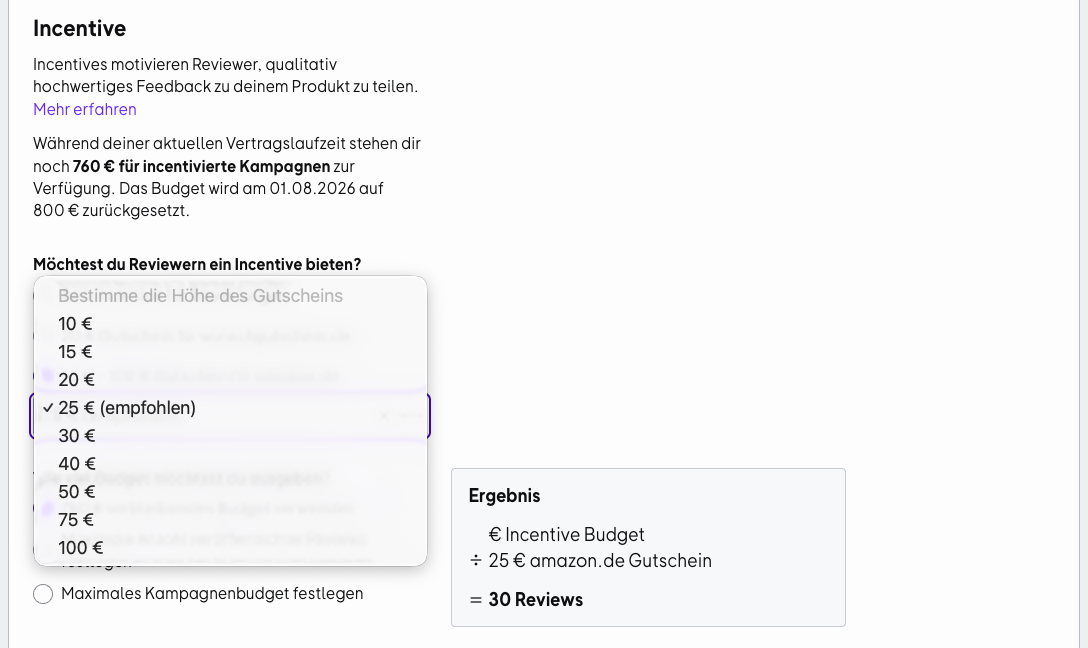
Monetary incentives increase the perceived imbalance, which can encourage reviewers to put in more effort and write more detailed reviews. However, you shouldn’t set the gift card amount too high. We recommend an amount between €20 and €30 to appropriately recognize the reviewer’s time and effort.
Step 4: Set a limit
Choose how to limit the campaign:
-
Verbleibendes Budget verwenden (the campaign runs until your budget is used up),
-
Maximale Anzahl veröffentlichter Bewertungen: for example, a maximum of 50, or
-
Maximales Kampagnenbudget: for example, €200

What you’ll see later: In the campaign list, you’ll see budget (spent/remaining), all reviews (the total number of reviews in the campaign), and reviews received (incentivized reviews, for example, 32/50).
Step 5: Personalize the message
Write a personalization text of up to 250 characters to display on the review landing page.
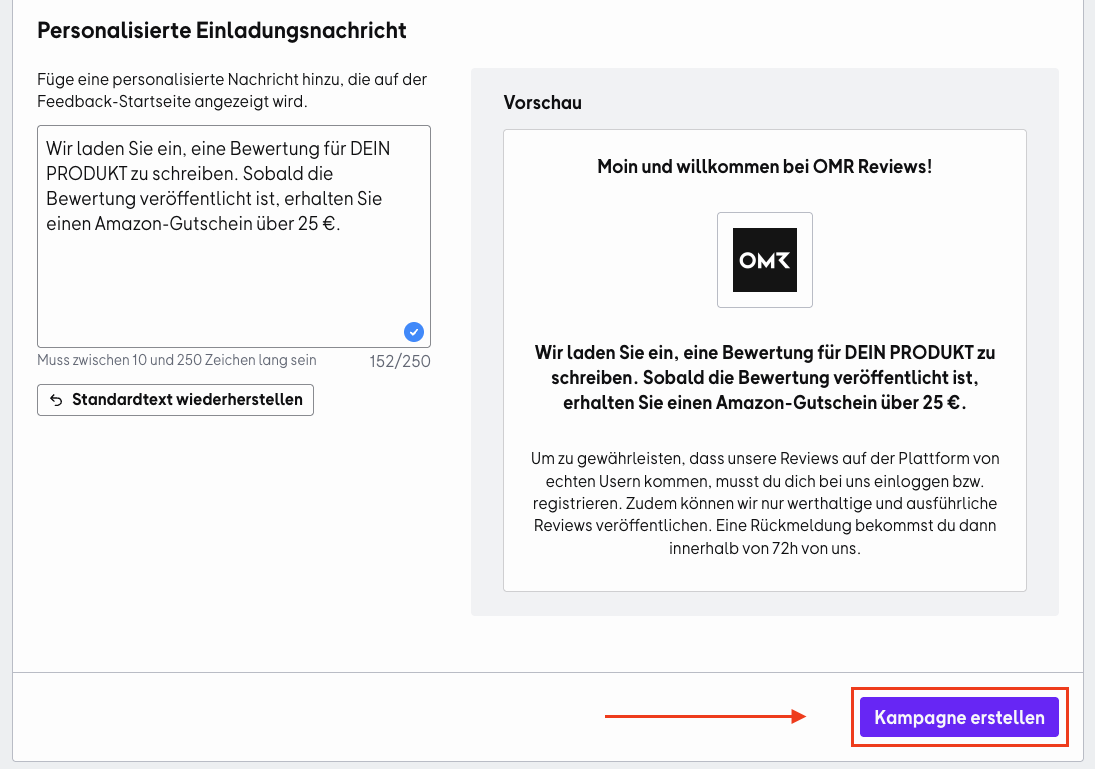
Click „Kampagne erstellen“. Your campaign-specific link will then be ready and will appear in the overview of your review campaigns.
Use the link in email sequences, QBR decks, in-app messages, social media posts, or email footers for your CS or support team. Each use can be tracked to the campaign.
👉 Learn more about sharing survey links
Personalized review links for individual employees
When several employees are actively collecting reviews, a common question is:
👉 How can you effectively track results at the team or individual level?
There are two main options:
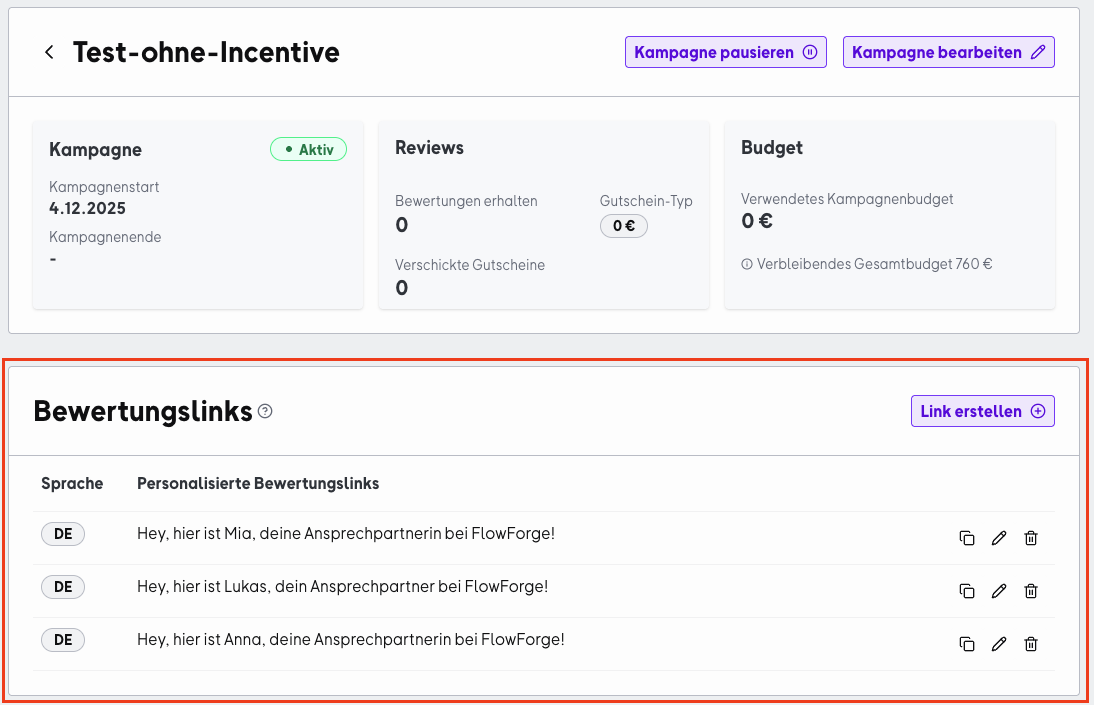
Option 1: One review campaign with personalized links
Create one central campaign and generate individual links for each employee within it.
Ideal if:
-
You want to monitor the overall performance of a team
-
Consistent communication is important
-
Employees should collect reviews during the same period
You can still personalize the messaging within the shared campaign, for example, in the invitation text.
Option 2: A separate campaign for each employee
Create a separate review campaign for each person.
Ideal if:
-
The focus is on measuring individual performance
-
You want to see exactly who generated which reviews
-
Employees need flexibility, for example, to pause or start at different times
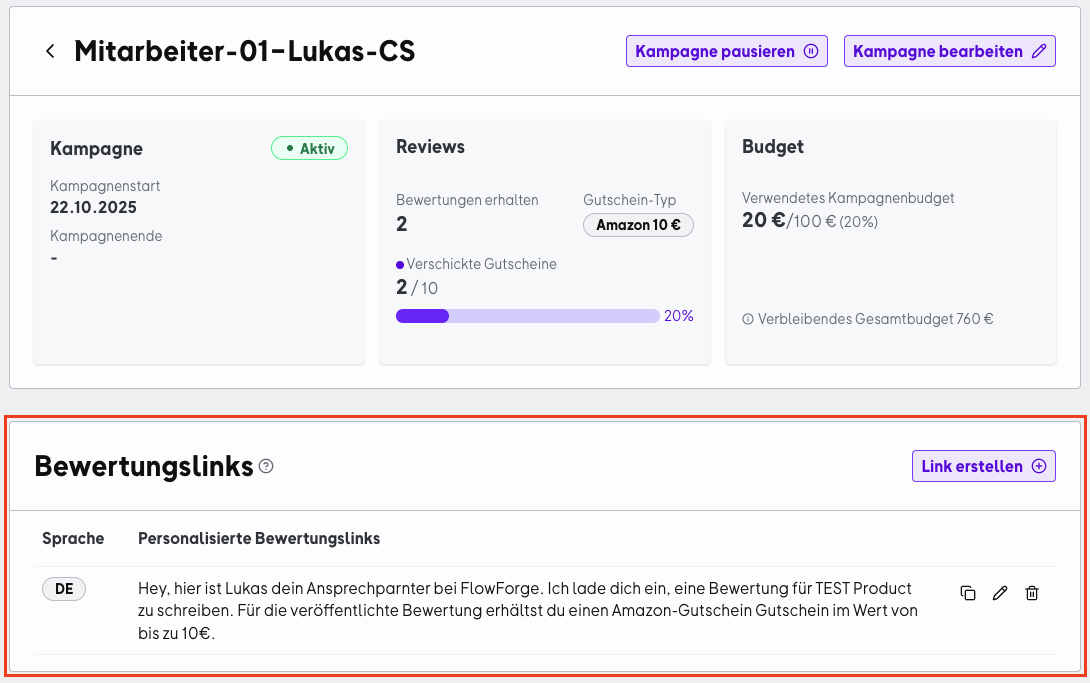
One important operational difference is that campaigns and their associated links always have the same duration. So, if all employees should collect reviews during the same period, a shared campaign is recommended. Separate campaigns are better if you need more flexibility, for example, to let individuals pause their campaigns.
Campaign overview
This screen is the central overview of all your ongoing review campaigns. At a glance, it shows you:
-
Which campaigns are currently running?
-
How much is the selected incentive?
-
How much of the budget has been used?
-
How many reviews have been collected so far?
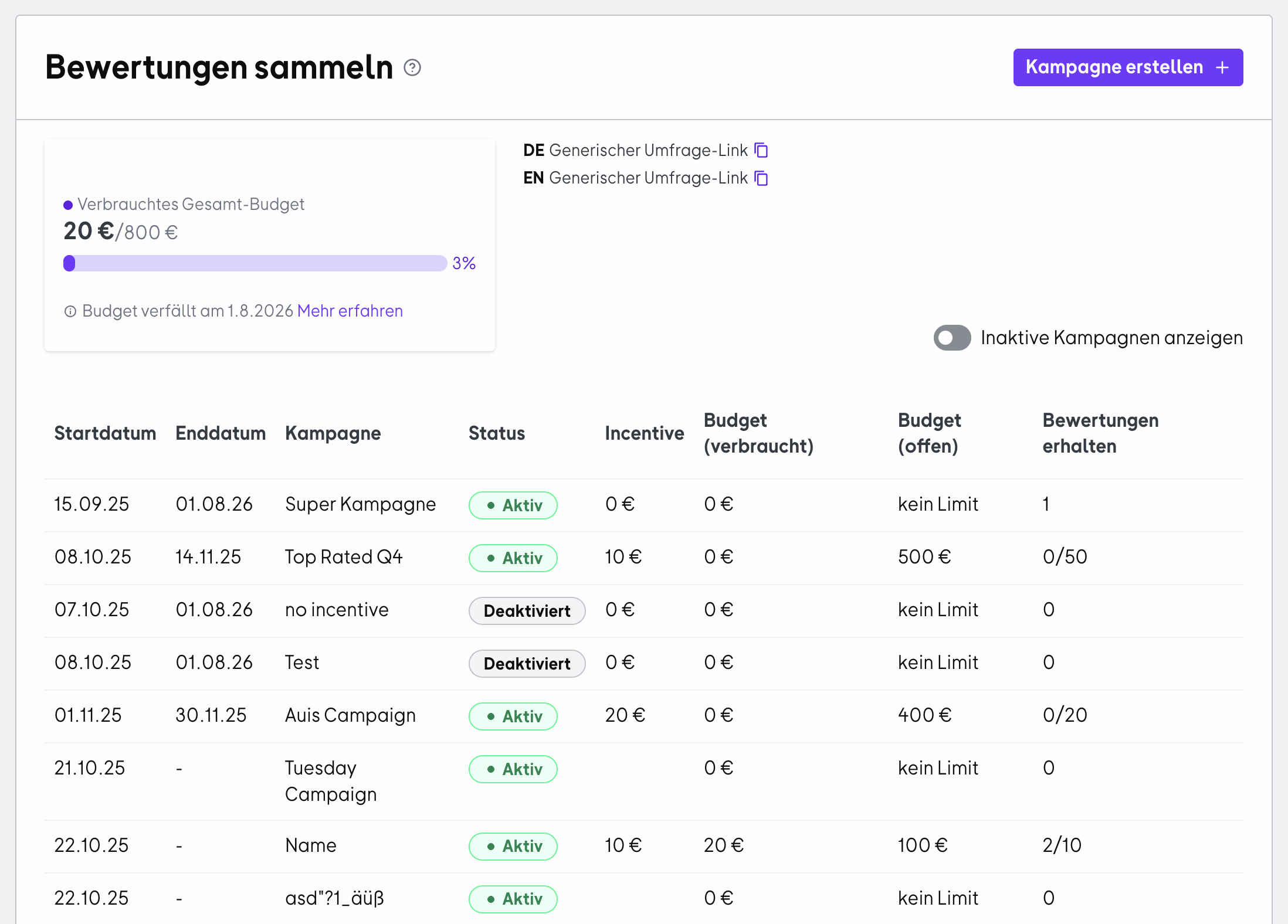
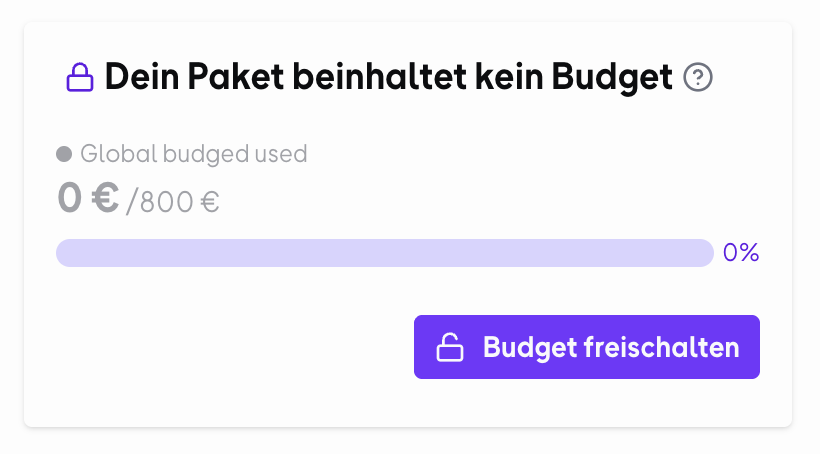
1. Budget box (top left)
-
Shows whether your current plan includes a budget for incentives.
-
A progress indicator (e.g. €0 / €800) shows how much has been used.
Learn more about “Budget for reviews”
2. Generic survey links (top right)
You can use generic survey links flexibly in emails, on landing pages, or in other communications. They’re especially useful when you want to share a general request for reviews.
Reviews submitted through generic links follow the same logic as organic reviews. This means that the OMR Manager doesn’t provide detailed tracking for individual reviews. In this case, the OMR Manager only displays the status “Veröffentlicht”.
This means:
- You can’t track incoming reviews through generic links in the same level of detail as you can with a review campaign.
- You don’t have a reliable overview of incoming reviews in the OMR Manager.
- Automated reminders are not available for generic links.
Always create a review campaign in the OMR Manager for your requests for reviews, whether they’re incentivized or not. That way, you can track reviews more effectively in the tool and automate reminders as needed.
Generic survey links are therefore best suited to simple, broadly distributed requests for reviews. If you want to manage and track reviews in a structured way and analyze them in the OMR Manager, a review campaign is the recommended option.
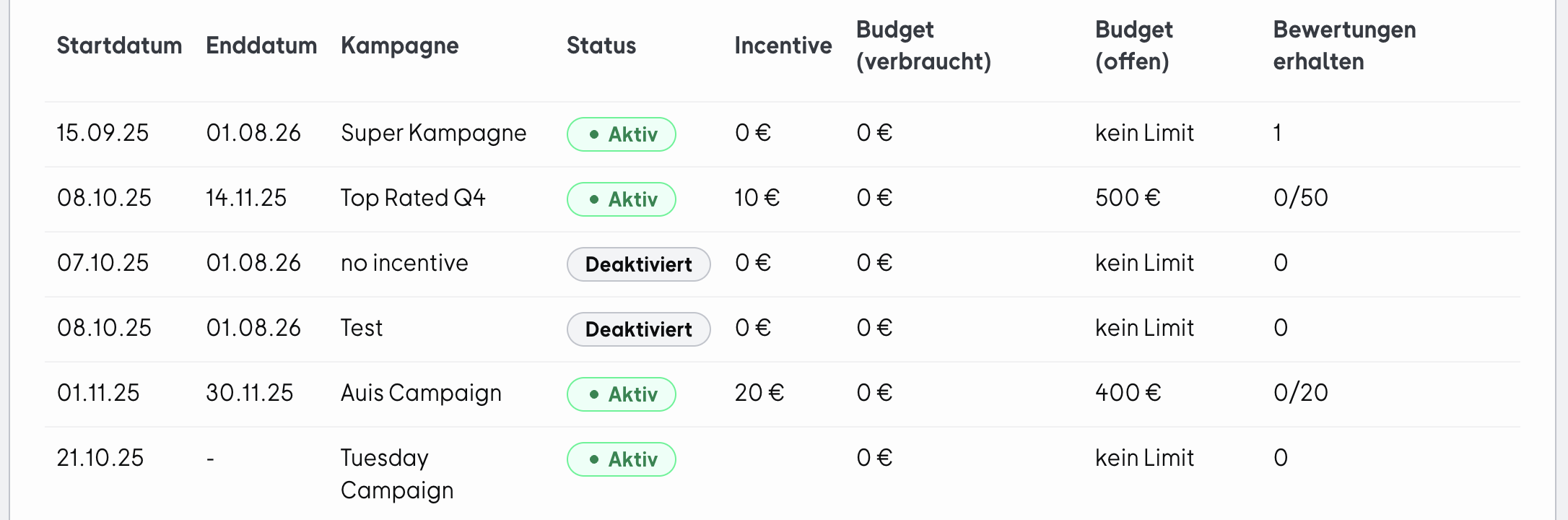
3. Campaign table
Shows all active and scheduled campaigns, with the following columns:
-
Startdatum / Enddatum → Campaign period
-
Kampagne → Campaign name
-
Status → Aktiv, Pending or Deaktiviert
-
Incentive → Incentive amount per review (e.g. €20)
-
Budget (verbraucht) → Budget paid out so far
-
Budget (offen) → Budget still available for this campaign
-
Bewertungen erhalten → Number of incentivized reviews received compared with the target (e.g. 0/15,000)
-
Alle Bewertungen → Total number of reviews associated with the campaign, whether they were incentivized or not
Why the numbers may differ: The “Bewertungen erhalten” column only includes incentivized reviews, since it reflects the campaign target and budget used. The “Alle Bewertungen” column, on the other hand, shows the total number of reviews submitted through this campaign. This number matches the number of reviews shown in the campaign details.
4. Filter option
- Use the “Inaktive Kampagnen anzeigen” toggle to show completed or stopped campaigns as well.
Below the campaign overview, you’ll find an overview of all the reviews you’ve collected.
👉 Learn more about “Interacting with reviews”
Campaign details
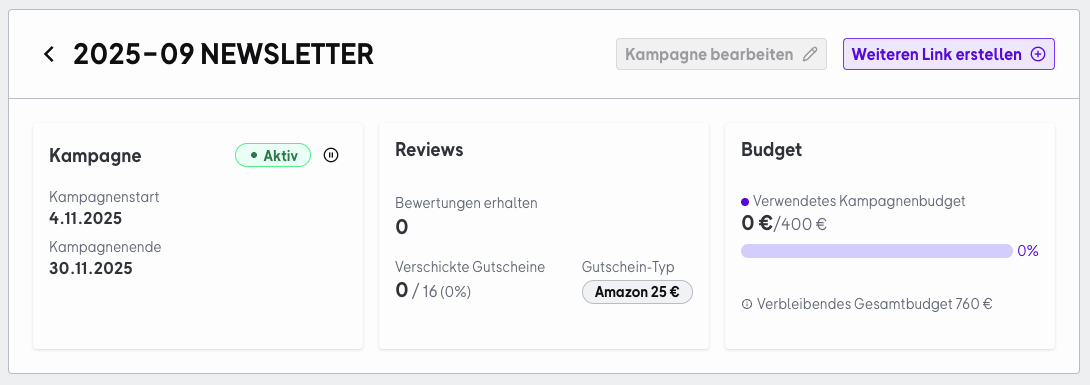
This view shows you all the information and results for an individual campaign, such as “2025-09 NEWSLETTER”. This page is the central hub for a single campaign.
It shows:
-
Status: Aktiv, Inaktiv, Ausstehend or Deaktiviert
-
Kampagnenstart & Kampagnenende: The period during which the campaign runs
-
Bewertungen erhalten: Number of reviews received through this campaign so far
-
Verschickte Gutscheine: Shows how many vouchers have already been sent compared with the maximum number available (e.g. 0/8).
-
Verwendetes Kampagnenbudget: Progress bar showing the amount used and the limit (e.g. €0 / €200).
-
Verbleibendes Gesamtbudget: Any remaining budget is shown here.
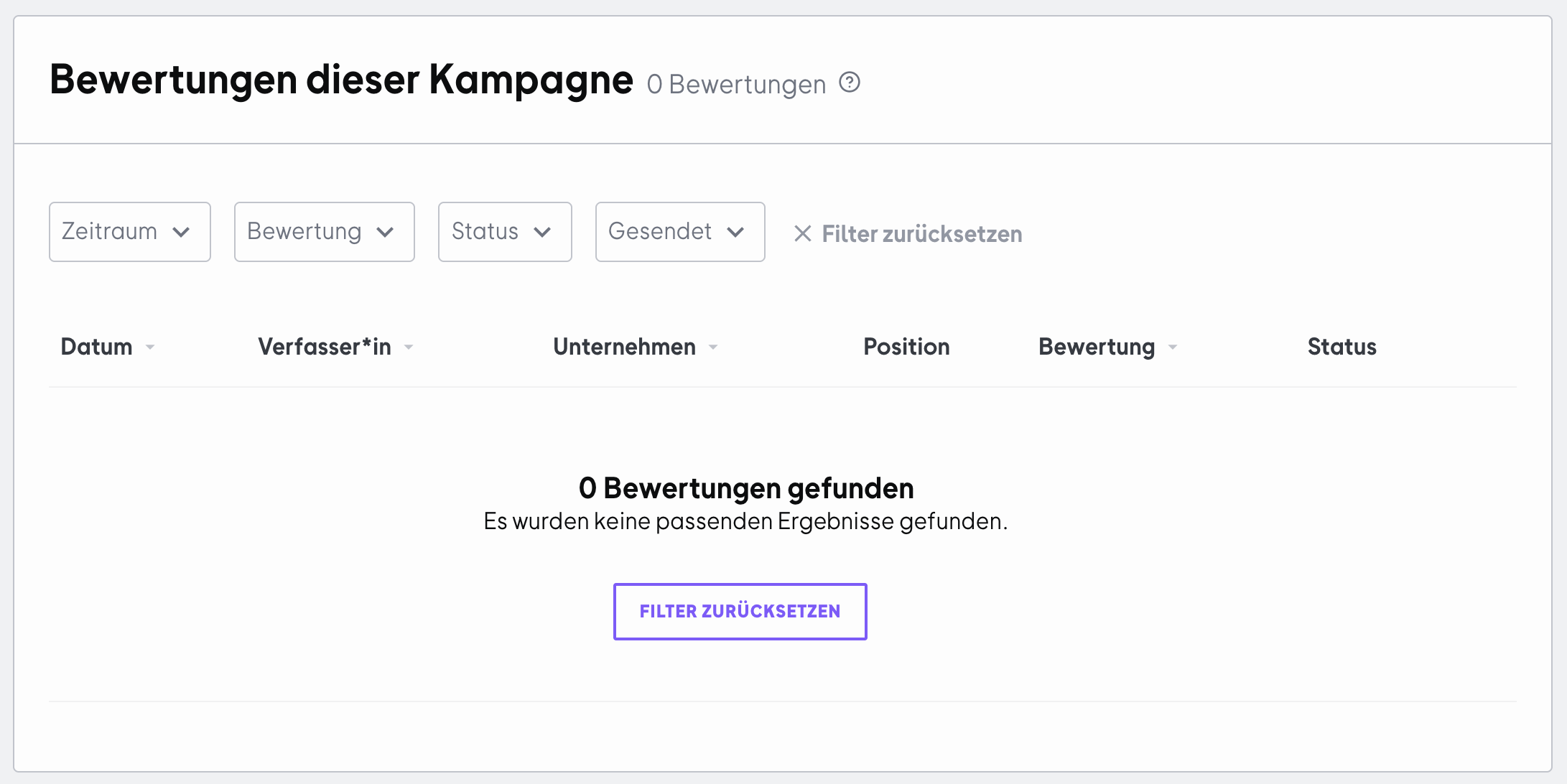
Under “Bewertungen für diese Kampagne”, you’ll find all the reviews submitted through this campaign. From there, you can reply to reviews and send reminders to people who haven’t submitted a review yet.
OMR Reviews automatically sends vouchers only after a review has been published, and deducts them from the selected allowance.
Best practices
Channel benchmarking
-
Problem: It’s unclear which touchpoints generate the most reviews.
-
Approach: Create separate campaigns for each channel (newsletter, in-app, QBR). Include the channel in the campaign name.
-
Result: You can see at a glance which channel has the best response rate and allocate your budget accordingly.
Incentive optimization
-
Problem: Low conversion despite outreach.
-
Approach: Create two campaigns running in parallel (e.g. Amazon €20 vs. €20 voucher of your choice). Use the same audience and campaign period.
-
Result: You can see which type of incentive converts better and standardize the amount
 Powered by happysupport.ai