
Notifications in OMR Manager
Track new reviews, awards, and customer leads in your OMR Manager notifications feed, then jump directly to the relevant section with one click to take action
New reviews, awards, and leads in one place: How to work with your notifications and get to the right place in one click
There’s always something happening on your OMR Reviews profile. Customers leave reviews, your tool receives awards, and buyers get in touch through your contact form. Notifications in OMR Manager bring these events together in one place and take you where you can act on them with a single click.
Here’s what you’ll find in this article 👇
- What notifications in OMR Manager are
- Your notifications in OMR Manager
- Which notifications you receive
- Who on your team can see notifications
- Notifications and emails
- Best practices: How to work with the feed
- Frequently asked questions
What notifications in OMR Manager are
A notification is a short message about an event on your profile, along with a button that takes you to the relevant place in OMR Manager. A new review takes you to the review, while a new contact request takes you to the lead.
That makes the feed a guide, not an inbox. You can’t reply to messages or edit data there. You do that in the relevant section. Instead, you can see all events for all your tools in one place, rather than having to search for them across different email threads.
Your notifications in OMR Manager
Preview on the dashboard
The “Dashboard” in OMR Manager is the page you see after logging in. Its “Benachrichtigungen” card shows a preview of your three newest notifications. That way, you can see what’s happened recently as soon as you log in.
All notifications on a dedicated page
You’ll find all your notifications on a dedicated page in OMR Manager. Three tabs sort your messages:
- Alle → all notifications
- Ungelesen → only messages you haven’t read yet
- Archiviert → messages you’ve removed from your view
An unread indicator lets you know when you have new notifications.
If your company has multiple tools on OMR Reviews, all notifications for them are brought together here. A label on each notification shows which tool it relates to.
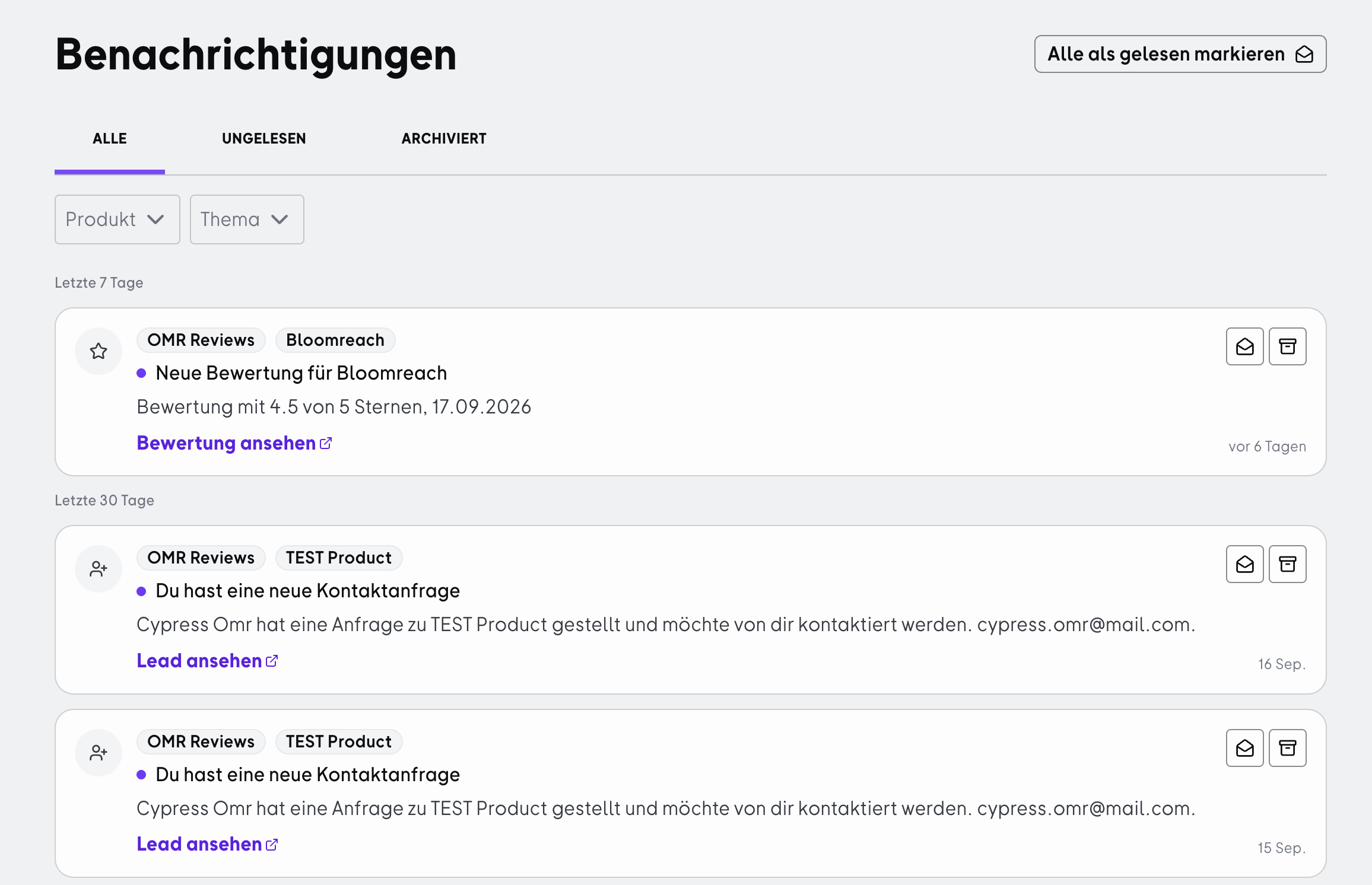
Notifications in OMR Manager with multiple messages for different tools
What a notification looks like
All notifications follow the same format:
- Labels in the top left show the source and the tool, for example OMR Reviews and CleverReach
- The purple dot before the heading means you haven’t read the message yet
- The heading tells you what happened, for example, “New review for CleverReach”
- The line below provides the most important details, such as the star rating and date for a review
- The time indicator shows how long ago the event happened
- The button on the right is the main purpose of the notification. It takes you directly to the right place
Marking notifications as read and archiving them
Clicking the button takes you to the relevant page and marks the notification as read at the same time. The purple dot then disappears. You can also mark a notification as read without opening it, for example, if you already know what it says.
If you want to remove a message from your view, archive it. You can find archived notifications again at any time in the “Archiviert” tab.
Archiving just tidies up your view. The event itself remains available: you can still find the review in the review section and the lead in the Leads Section.
How far back the feed goes
The feed shows events from the last 60 days. Older messages are automatically removed from view, but the related reviews, awards, and leads remain in their respective sections.
Which notifications you receive
| Event | What you’ll see in the message | Where the button takes you |
|---|---|---|
| New review published | Tool, star rating, and review date | The review in the review section |
| “Top Rated” award received | Which tool received the award | Resources, where you can download the badge asset |
| “Leader” award received | Which tool received the award | Resources, where you can download the badge asset |
| New contact request | That someone got in touch through your contact form | The lead in the Leads Section |
| Pricing request received | That someone requested a custom offer | The lead in the Leads Section |
| Document download | That someone downloaded a document from your downloads area | The lead in the Leads Section |
The three lead notifications are the fastest way to get to your leads because you can skip the navigation.
👉 Learn more about “The Leads Section in OMR Manager”
👉 Learn more about “What you need to know about reviews, the OMR Score, and OMR Reviews badges”
Who on your team can see notifications
Everyone at your company who has admin permissions for the Reviews section in OMR Manager receives notifications. People who use the Manager only for other purposes, such as organizing the Festival, won’t see the feed.
Everyone with the right permissions sees the same messages for all of your company’s tools. Notifications can’t be divided by area of responsibility. So if you want colleagues in Sales to see lead notifications, they’ll need their own account with the right permissions.
👉 Learn more about “Inviting colleagues to OMR Manager”
Notifications and emails
The feed on the dashboard and system notification emails are two channels for the same events.
You control who receives the emails. In your product’s “Einstellungen”, you can add email addresses to different distribution lists, separately for reviews and awards, contact requests and downloads, and companies identified through Buyer Intent data. It’s worth checking these settings occasionally, since emails sent to an outdated address won’t reach anyone.
The dashboard feed, on the other hand, is available to everyone with the right permissions, regardless of the distribution lists.
👉 Learn more about “Managing distribution lists for system notifications”
Best practices: How to work with the feed
Make the feed your go-to starting point
- Problem: If you only respond to emails, you’re always working from your inbox and may miss events sent to a distribution list instead of your own address. This can quickly get confusing when you have multiple tools.
- What to do: After logging in, take a look at the preview on the dashboard. If needed, go through all open messages in the “Ungelesen” tab. Use the button in each message instead of navigating manually, so you go straight to the review or lead.
- Result: You can see all your tools at once and get a complete picture in just a few minutes, without searching through your inbox.
Respond to new reviews while they’re still fresh
- Problem: An unanswered review is visible to everyone who visits your profile. If the review is critical, your perspective is missing, and buyers only get one side of the story.
- What to do: Use the notification as a prompt and reply directly from the review page. A short response is enough for positive reviews. For critical ones, address the specific point raised.
- Result: Your profile shows that you listen and respond. That’s a trust signal for buyers in its own right, regardless of the star rating.
👉 Learn more about “Interacting with reviews”
Put awards to use right away
- Problem: You notice an award and then leave it at that. The badge stays in Resources and never appears where buyers could see it.
- What to do: Download the asset directly using the button in the notification, then share it with Marketing for your website and landing pages, and with Sales for presentations and offers.
- Result: An independent trust signal becomes part of your communications instead of just another file in your downloads folder.
Only archive lead notifications after you’ve handled the lead
- Problem: It’s easy to mark a message as read or archive it. If you haven’t handled the lead yet or added it to your CRM, it can fall through the cracks between systems.
- What to do: When you get a lead notification, first use the button to go to the Leads Section. Handle the lead or transfer it, and only then archive the message. If you clicked too soon, you can find the message in the “Archiviert” tab, and the lead will still be in the Leads Section.
- Result: The “Ungelesen” tab gives you a reliable view of what’s still outstanding, so you don’t lose a request while tidying up.
Frequently asked questions
I can’t see any notifications on the dashboard. Why?
There are two possibilities. Either your account doesn’t have admin permissions for the Reviews section, in which case the feed won’t be displayed, or there haven’t been any events yet, such as a published review, an award, or a lead. If you’re not sure, ask someone who manages permissions at your company to check that your access is set up correctly.
How far back does the feed go?
It shows events from the last 60 days. Older events disappear from view but remain in their respective sections.
I archived a notification by mistake. Is it gone?
No. You can find archived notifications in the “Archiviert” tab. The event itself is still available too: you can find the review in the review section and the lead in the Leads Section.
Do all my colleagues get the same notifications?
Yes. Everyone with admin permissions for the Reviews section sees the same feed, including notifications for all your company’s tools.
Can I choose which notifications I see?
The dashboard feed shows all events for your tools. You can control email notifications by using the distribution lists in your product’s settings to decide which addresses receive which system notifications.
Why am I also getting an email?
The feed and email are two channels for the same event. Email reaches you even when you’re not in OMR Manager, while the feed brings everything together in one place.
Can I reply directly from a notification?
No. Notifications take you to the right place, where you can take action. You can reply to a review from the review page, and contact a lead through your own channels from the Leads Section.
Are notifications available without a paid plan?
Yes. The feed shows events for all your company’s tools. However, which events can occur depends on how each profile is configured. For example, a download lead requires a downloads area with at least one document.
 Powered by happysupport.ai