
Structure and Sections of the AI Visibility Dashboard
Navigate the AI Visibility Dashboard layout from filters and brand performance metrics through KPI tiles, competitor mentions, top domains, and AI engine…
How your AI Visibility Dashboard is organized
The AI Visibility Dashboard is laid out from top to bottom so you can move from a quick answer to the trend and then to the detailed sources. Once you’re familiar with the layout, you’ll be able to find your way around any new view right away.
This article gives you an overview of all the sections and shows you where to find things. Detailed explanations of each widget are covered in separate articles. This article is just a guide to help you get oriented.
In this article, you’ll find 👇
-
Filter bar
-
Brand Performance Over Time
-
KPI tiles
-
Mentions & Citations by Competitors
-
Top Domains & Top URLs by Citations
-
AI Engine Performance
Filter bar

Directly below the header, you’ll find the filter bar with six controls:
- Timeframe (for example, “Last 7 Days” or “3 Months”), plus arrows for Previous/Next-Period
- Engines to filter by individual AI engines
- Topics for topic clusters
- Tags for Core and Flex queries (you set these up at the start in your prompt set)
- Queries for individual prompts
- Metrics scope (on the right) for detailed settings for aggregation, metric type, and time zone
The filters apply globally to all widgets in the dashboard. Find out more in the Filters & Time Periods article.
Brand Performance Over Time
The large line chart below shows your Brand Performance Over Time compared with all tracked competitors. Each line represents a brand, with your own brand highlighted. To the right of the chart, you’ll see the Latest Values, including your current value and those of your top competitors.
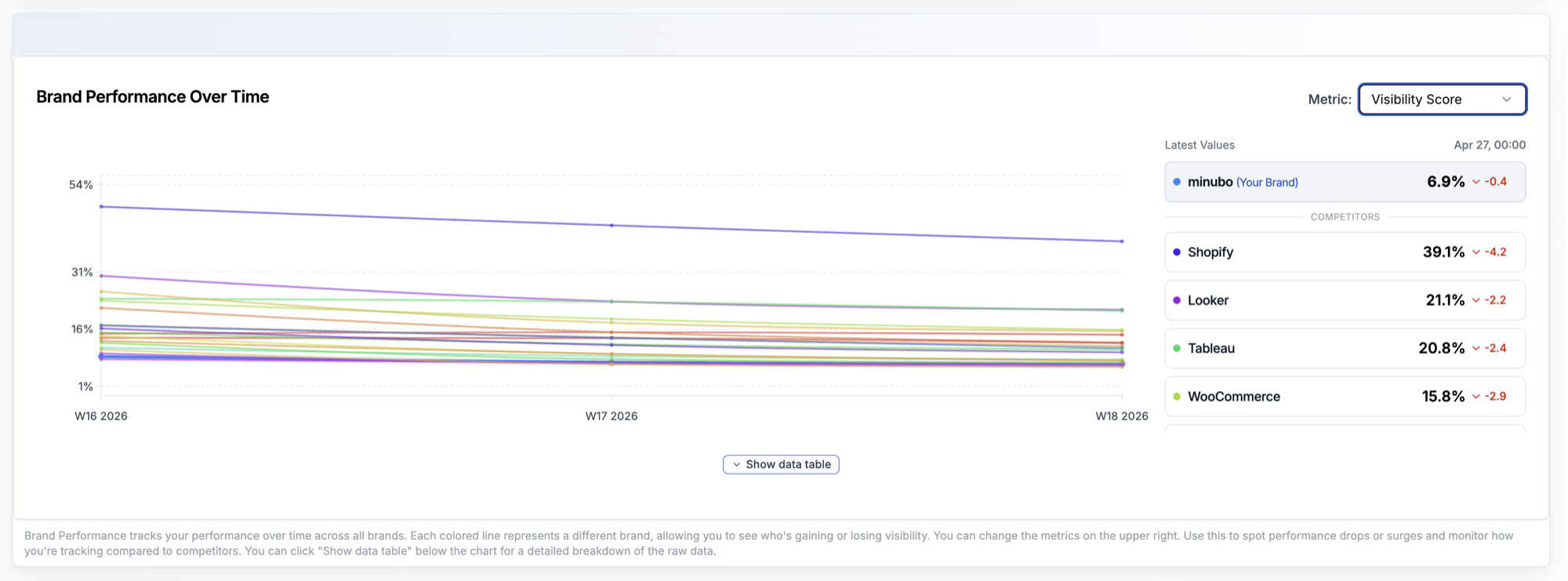
Use the Metric dropdown in the top-right corner to switch between seven metrics: Visibility Score, Mentions, Citations, Detection Rate, Position, Top 3 Visibility, and Sentiment Score. Select Show data table below the chart to display the full brand table.
👉 Learn more about interpreting your Brand Performance
KPI tiles
Below the chart, you’ll find a row of four KPI tiles:
- Mentions (greenish background)
- Citations (lavender background)
- Detection Rate (yellow-orange background)
- Sentiment Score (When Found) (red-pink background)
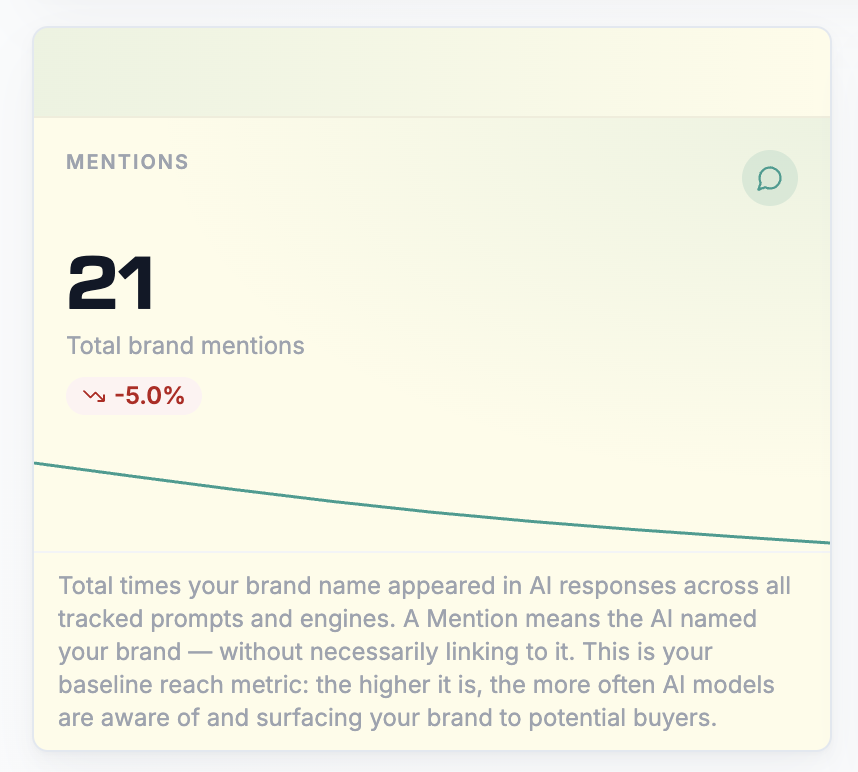
Each card displays a headline figure, a trend indicator (▲ green or ▼ red, with the percentage change), and a small sparkline. The background colors group the cards by topic and don’t indicate a rating.
👉 Learn more about interpreting the KPI tiles
Mentions & Citations by Competitors
Directly below are two Top 10 lists: Mentions by Competitors on the left and Citations by Competitors on the right. Both show brands ranked by volume, with a bar visualization and an absolute value.
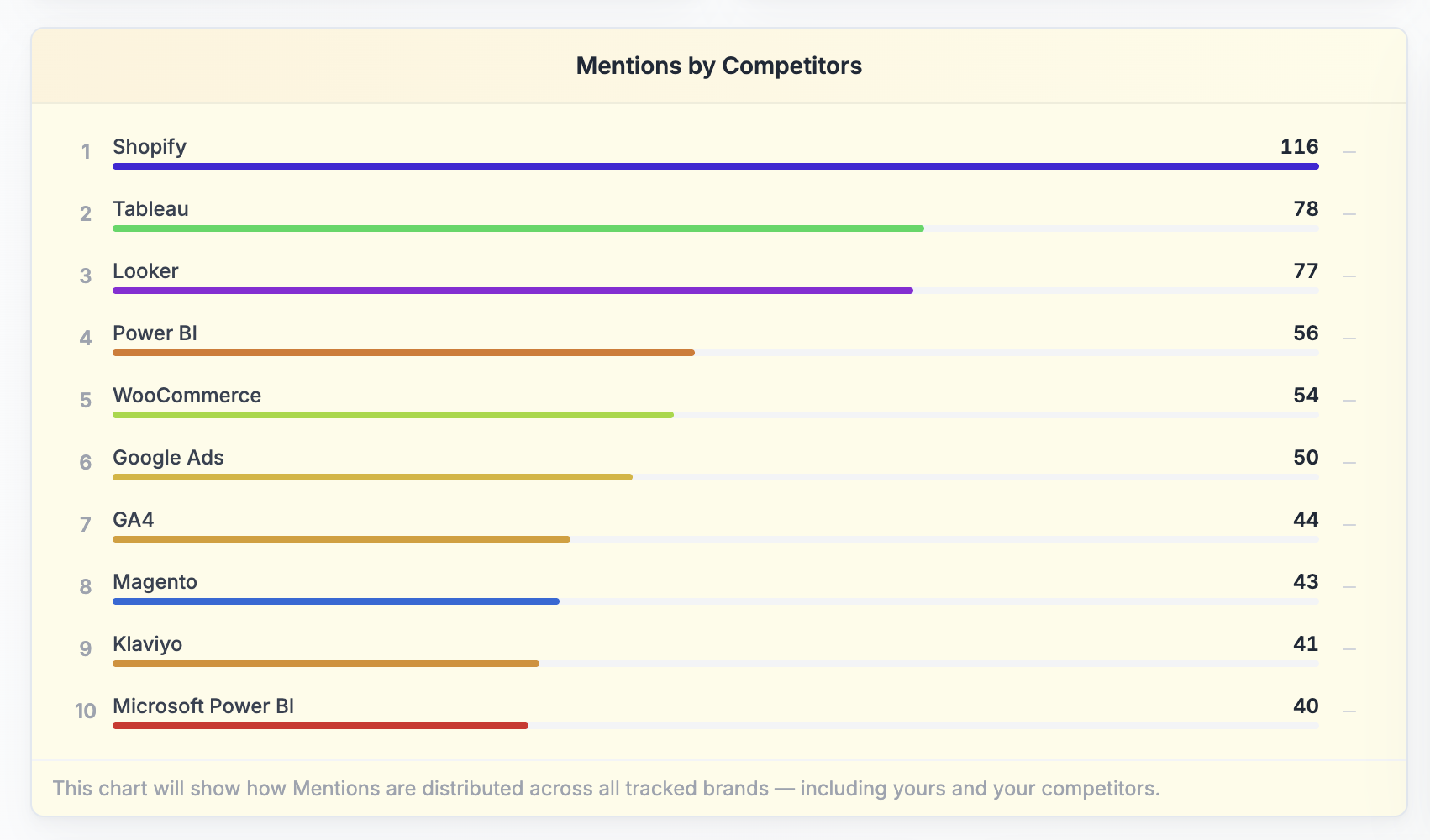
These lists give you an overview of the competitive landscape: which brands dominate your category in mentions, and which ones lead in citations?
👉 Learn more about interpreting Competitor Mentions
Top Domains & Top URLs by Citations
Next, you’ll see three tables side by side:
- Top Domains by Citations: which websites are cited most often by AI engines
- Top URLs by Citations: which specific pages are used as sources
- Top URLs for your Domain: which pages on your own domain are cited
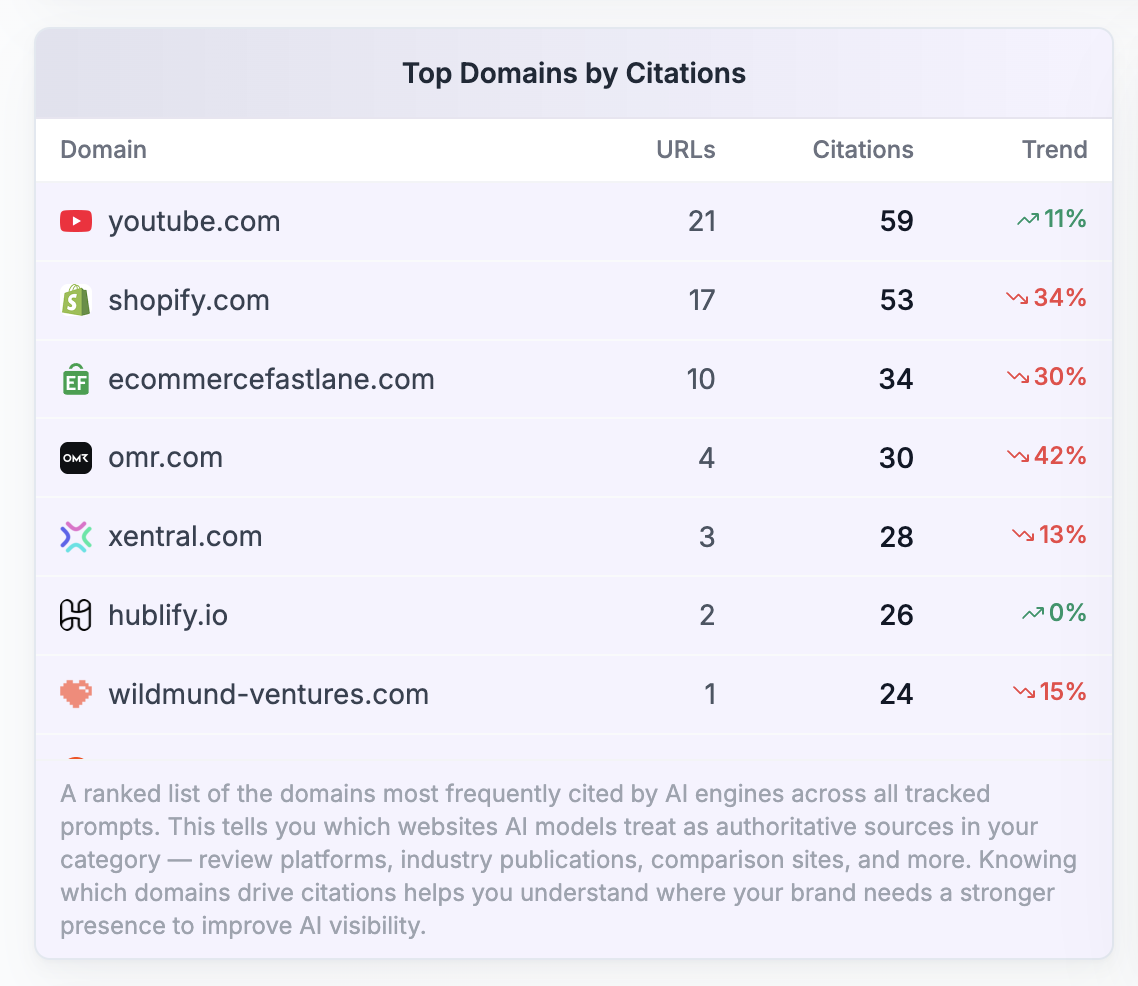
Each table shows URLs, the number of Citations, and a trend indicator with the percentage change.
👉 Learn more about interpreting your Top Domains & Top URLs
AI Engine Performance
Below the tables is the second large line chart: AI Engine Performance for [your brand]. Unlike the Brand Performance chart, this chart doesn’t show all brands. It shows only your brand, broken down by AI engine.
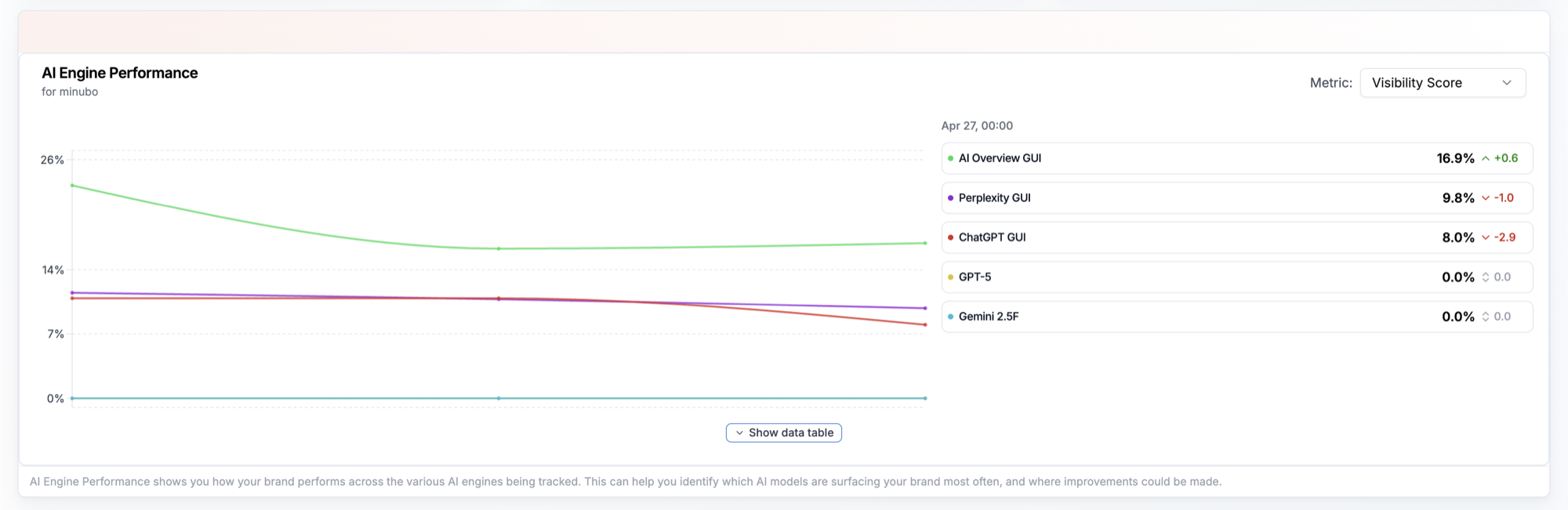
You’ll see one line for each engine (AI Overview GUI, ChatGPT GUI, Perplexity GUI, GPT-5, Gemini 2.5F), and you can use the same Metric selector to adjust the view.
 Powered by happysupport.ai